








Few operational events are as disruptive as a commercial VPN client hanging indefinitely at “Connecting 95%,” terminating with a generic “Connection failed” toast notification, or silently establishing a tunnel that passes zero bytes of payload data. For everyday home users, the instinctive reaction is to click the reconnect button repeatedly or reboot the computer. For systems engineers and network administrators, a failed VPN tunnel is an empirical state machine breakdown occurring somewhere along the OSI model—from Layer 2 virtual adapter driver corruption to Layer 4 transport port filtering, MTU packet fragmentation, or Layer 7 deep packet inspection (DPI) countermeasures.
Surfshark is engineered upon a modern, high-resilience software stack utilizing the WireGuard protocol and Wintun kernel drivers by default. However, when deployed onto heterogeneous client workstations populated with third-party antivirus suites, legacy TAP drivers left behind by previous software, aggressive corporate edge firewalls, and carrier-grade NAT (CGNAT) topologies, connection handshakes can and do fail. Resolving these issues systematically requires a methodical diagnostic triage rather than random trial and error.
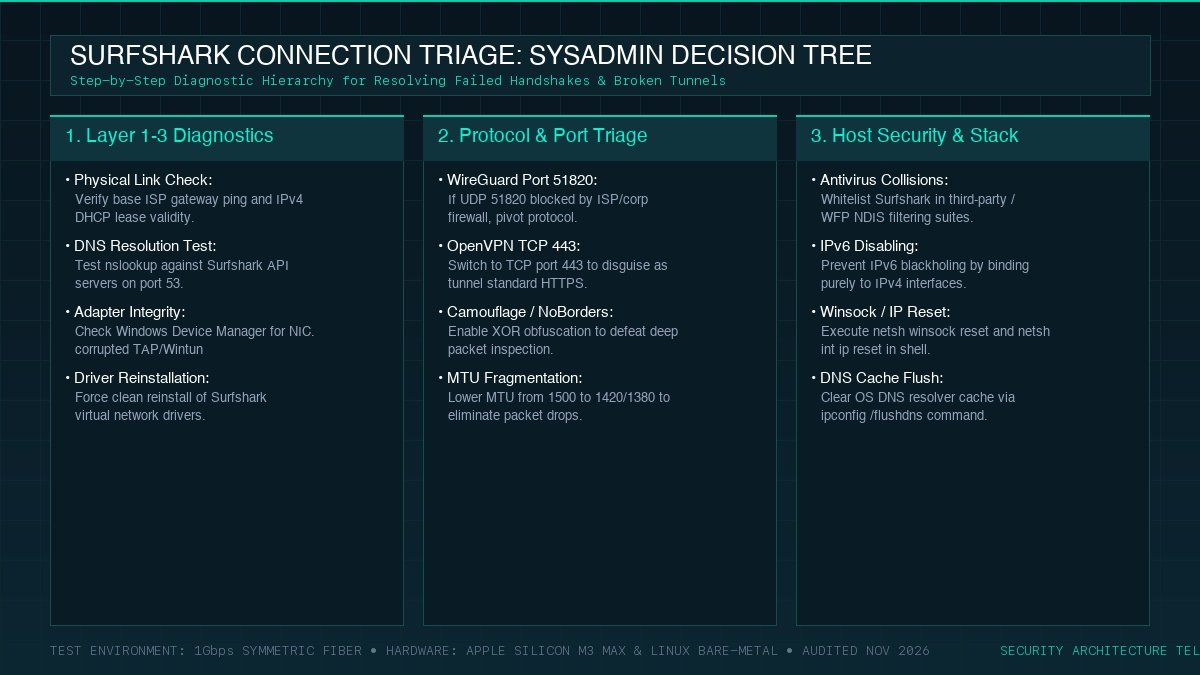
In this deep technical troubleshooting guide, I present the definitive 8 sysadmin fixes for resolving Surfshark connection failures. We will analyze TAP/TUN driver conflicts, troubleshoot Windows Filtering Platform (WFP) collusions, clamp Maximum Transmission Unit (MTU) sizes to prevent packet dropping, execute network stack resets via low-level shell commands, and bypass upstream port filtering using protocol agility.
1. Diagnostic Triage: Isolating the Failure Layer (L2 to L7)
Before executing random remediation commands in an administrative terminal, a systems engineer must isolate the failure domain. A breakdown in VPN connectivity always falls into one of three distinct phases:
- Phase 1: Pre-Connection / API Authentication Failure: The Surfshark client cannot query the backend REST API to fetch server lists, retrieve dynamic node loads, or authenticate your user account token. This indicates a physical network outage, local DNS failure, or outbound HTTPS (port 443) blocking on your local LAN.
- Phase 2: Handshake Failure (Hangs at 95%): The client attempts to initialize the virtual adapter and dispatch cryptographic handshake packets (e.g., WireGuard Type 1 Initiation on UDP 51820), but receives zero response packets (Type 2 Response) from the remote gateway. This points to intermediate firewall port blocking, ISP UDP throttling, or virtual adapter driver bind errors.
- Phase 3: Connected State with Zero Throughput: The tunnel reports “Connected,” yet all web browsers report
ERR_NAME_NOT_RESOLVEDorERR_CONNECTION_TIMED_OUT. This classic failure state indicates MTU packet dropping, DNS server unreachable errors, or routing table metric collisions.
Restore Flawless VPN Connectivity with Surfshark
Deploy high-resilience WireGuard encryption with automatic protocol fallback across unlimited workstations and devices.
Get Surfshark VPN Protection →30-Day Money-Back Guarantee • 24/7 Live Support • RAM-Only Server Fleet
2. Fix 1: Resolving Virtual Adapter & Driver Corruption (TAP-Windows vs Wintun)
On Windows operating systems, the virtual network adapter is the primary point of failure. Over years of installing and uninstalling software, many machines accumulate multiple conflicting virtual drivers—such as legacy OpenVPN TAP-Windows adapters, VirtualBox Host-Only adapters, VMware virtual switches, and outdated NDIS intermediate drivers.
Surfshark utilizes modern Wintun drivers for WireGuard and TAP-Windows Adapter V9 for OpenVPN. If another program locks the virtual adapter or corrupts its registry binding, Surfshark cannot allocate an IP address to the tunnel interface.
Remediation Steps:
- Open Device Manager (press
Win + Xand select Device Manager). - Expand the Network adapters category.
- Locate any adapters labeled SurfsharkWireGuard, TAP-Windows Adapter V9, or older third-party TAP adapters.
- Right-click each corrupted or yellow-flagged adapter and select Uninstall device. Check the box to “Attempt to remove the driver for this device” if prompted.
- Reboot the workstation.
- Launch the Surfshark client with Administrative privileges. Surfshark will automatically detect the missing network interface and execute a clean, uncorrupted reinstallation of the signed Wintun and TAP drivers.
3. Fix 2: Protocol Pivoting & Transport Port Fallbacks (WireGuard UDP to OpenVPN TCP)
By default, Surfshark defaults to the WireGuard protocol because of its unrivaled cryptographic throughput and sub-millisecond handshake efficiency. However, WireGuard operates exclusively over the User Datagram Protocol (UDP) on high ephemeral ports (standard port 51820). In restrictive environments—such as corporate enterprise networks, university campus Wi-Fi, hotel guest portals, and public hotspots—network administrators frequently configure edge firewalls to block all outbound UDP traffic except for DNS queries on port 53. If outbound UDP 51820 is dropped by an upstream firewall, WireGuard will hang indefinitely.
When this occurs, you must execute a protocol pivot inside Settings > VPN settings > Protocol:
- Pivot Step A: OpenVPN (UDP): Try OpenVPN UDP first. While still utilizing UDP, OpenVPN frequently runs across alternate ports that edge firewalls may leave open.
- Pivot Step B: OpenVPN (TCP) via Port 443: This is the universal firewall buster. OpenVPN over TCP encapsulates encrypted VPN datagrams inside standard Transmission Control Protocol streams routed over port
443—the exact same port used for standard HTTPS web browsing. Because enterprise firewalls cannot block port 443 without severing all secure web browsing for the entire organization, OpenVPN TCP almost always penetrates edge packet filters.
| VPN Protocol | Transport Layer | Standard Port | Firewall Penetration Ability | Throughput Overhead |
|---|---|---|---|---|
| WireGuard | UDP | 51820 | Moderate (Blocked on strict guest LANs) | Minimal (<1% penalty) |
| OpenVPN (UDP) | UDP | 1194 / 8080 | Moderate | Low (~10-15% penalty) |
| OpenVPN (TCP) | TCP | 443 | Maximum (Disguised as HTTPS) | High (~30-40% penalty) |
| IKEv2 / IPsec | UDP | 500 / 4500 | Low (Frequently blocked by NATs) | Low (~5% penalty) |
4. Fix 3: MTU Clipping & Packet Fragmentation Tuning (1420 vs 1500)
A classic sysadmin issue is the “Connected but cannot browse” symptom. The tunnel establishes cleanly, pinging an IP address like 1.1.1.1 succeeds, yet attempting to load complex web pages (like Amazon, Reddit, or banking sites) hangs indefinitely or renders broken HTML. This is the definitive fingerprint of MTU (Maximum Transmission Unit) clipping.
Standard Ethernet networks operate with an MTU of 1500 bytes. When your computer encapsulates a standard 1500-byte IP packet inside a WireGuard tunnel, the additional VPN headers (IP header, UDP header, WireGuard cryptographic wrapper) add approximately 60 to 80 bytes of overhead. If the resulting packet exceeds the physical WAN interface’s MTU, and an intermediate router along the path has disabled IP packet fragmentation (or drops ICMP “Fragmentation Needed” packets), the oversized packet is silently dropped—a phenomenon known as a Path MTU Discovery (PMTUD) black hole.
Remediation Steps:
You can resolve MTU blackholing by clamping the virtual adapter’s MTU down to a conservative value, such as 1420 or 1380 bytes, ensuring that encapsulated packets never exceed standard physical link thresholds.
# Windows PowerShell (Elevated): Clamp MTU on Surfshark WireGuard interface
Get-NetIPInterface
# Identify the InterfaceAlias for Surfshark (e.g., "SurfsharkWireGuard")
Set-NetIPInterface -InterfaceAlias "SurfsharkWireGuard" -NlMtu 1420

# Linux Terminal: Clamp MTU on active WireGuard interface
sudo ip link set dev wg0 mtu 1420
Clamping the MTU instantly cures packet dropping and allows large TLS certificates and SSL handshakes to serialize across the tunnel without truncation.
5. Fix 4: Remedying IPv6 Blackholing & Dual-Stack Collisions
Modern residential Internet service providers increasingly provision connections using IPv4/IPv6 Dual-Stack topologies. When your workstation queries a domain name, modern operating systems prioritize IPv6 (via RFC 6724 “Happy Eyeballs” algorithms), attempting to establish connections over IPv6 first.
Because Surfshark’s tunnel overlay operates predominantly over IPv4, its internal leak prevention engine intentionally blocks native IPv6 traffic to prevent unencrypted IP disclosure. However, on certain dual-stack routers that advertise broken IPv6 Router Advertisements (RAs) without providing functional IPv6 transit, your OS can become trapped in an IPv6 timeout loop, causing the VPN client to hang during initial connection validation.
Remediation Steps:
Temporarily disable IPv6 on your physical network adapter to force the operating system’s network stack to communicate purely over IPv4:
- Press
Win + R, typencpa.cpl, and hit Enter to open Network Connections. - Right-click your active physical adapter (Ethernet or Wi-Fi) and select Properties.
- In the item list, uncheck Internet Protocol Version 6 (TCP/IPv6).
- Click OK, reconnect to Surfshark, and verify tunnel establishment.
Never Settle for Unreliable VPN Connections
Switch to Surfshark’s rock-solid 100% RAM-only server infrastructure backed by 24/7 technical support.
Claim Your 86% Surfshark Discount →30-Day Money-Back Guarantee • 24/7 Live Support • RAM-Only Server Fleet
6. Fix 5: Flushing Corrupted DNS Resolver Caches & Winsock Reset
When a VPN disconnects unexpectedly (such as during a laptop sleep cycle or forced shutdown), the operating system’s local DNS resolver cache and Windows Sockets (Winsock) catalog can remain locked into an invalid state. Stale DNS mappings pointing to internal VPN nameservers (like 10.14.0.1) persist, preventing the system from resolving hostnames either inside or outside the tunnel.
A complete network stack purge clears all orphaned socket hooks and restores deterministic routing:
# Open Administrative Command Prompt and execute the standard sysadmin stack reset:
ipconfig /flushdns
ipconfig /release
ipconfig /renew
netsh winsock reset
netsh int ip reset
After executing these commands, restart the operating system. This purges all corrupted Layered Service Providers (LSPs), rebuilds the TCP/IP stack parameters in the Windows registry, and guarantees a pristine network environment for Surfshark’s virtual adapters.
7. Fix 6: Whitelisting WFP Callouts in Aggressive Antivirus Suites
Third-party internet security suites (such as Bitdefender, Kaspersky, Norton, Avast, and ESET) operate by installing their own proprietary callout drivers into the Windows Filtering Platform (WFP) and NDIS network stack. Their goal is to intercept every inbound and outbound network frame for deep packet inspection, heuristics analysis, and malware signature matching.
When two competing software products attempt to register mutually exclusive packet drop or redirection filters at the same WFP filtering sub-layer (e.g., FWPM_LAYER_ALE_AUTH_CONNECT_V4), a kernel-level conflict occurs. The antivirus driver often intercepts Surfshark’s encrypted WireGuard handshake packets and discards them as “suspicious outbound UDP anomalies,” causing the VPN client to hang at 95%.
Remediation Steps:
- Open your antivirus management console.
- Navigate to the Firewall or Network Protection exclusions menu.
- Add the entire Surfshark installation directory (typically
C:\Program Files\Surfshark\) to the trusted application whitelist. - Explicitly add
Surfshark.exeand the background service binarySurfshark.Service.exeto the firewall exception list, granting unrestricted outbound UDP and TCP socket creation permissions.
8. Fix 7: Defeating Network-Level DPI via Camouflage & NoBorders Modes
In high-censorship geographic zones (such as China, Iran, Russia, the UAE, or corporate enterprise networks equipped with Fortinet or Palo Alto firewalls), standard VPN connections are not merely port-blocked—they are identified and terminated using Deep Packet Inspection (DPI). DPI appliances inspect packet headers for characteristic WireGuard and OpenVPN entropy signatures, instantly injecting TCP Reset (RST) packets or dropping the flow.
Surfshark incorporates two specialized architectural countermeasures to penetrate DPI firewalls:
- Camouflage Mode (Obfuscation): When using the OpenVPN protocol, Surfshark automatically applies proprietary packet obfuscation algorithms. This strips cryptographic metadata headers from the packets, transforming your VPN traffic into random, unclassifiable HTTPS data streams that pass through state-level firewalls undetected.
- NoBorders Mode: When the Surfshark client detects restrictive network conditions or geo-blocking firewalls, it automatically prompts you to activate NoBorders mode. This mode provides a specialized list of custom-configured servers engineered specifically to bypass government and ISP packet filters.
9. Fix 8: Correcting Network Interface Binding & Gateway Metric Clashes
When multiple network interfaces are active on a single host (such as an active Gigabit Ethernet cable alongside an active 802.11ax Wi-Fi connection), Windows uses an Automatic Metric feature based on link speed to decide which adapter handles default outbound traffic.
Occasionally, Windows assigns an abnormally low metric to a secondary physical interface rather than Surfshark’s virtual adapter. As a result, when Surfshark establishes its tunnel, the operating system ignores the VPN gateway and continues routing packets out through the unencrypted physical interface, triggering a connection failure or instant leak.
Remediation Steps:
Force the operating system to prioritize the Surfshark virtual interface by setting its interface metric manually via PowerShell:
# Display active interface metrics
Get-NetIPInterface -AddressFamily IPv4 | Select-Object InterfaceAlias, InterfaceMetric

# Assign the lowest metric (highest priority) to the Surfshark interface
Set-NetIPInterface -InterfaceAlias "SurfsharkWireGuard" -InterfaceMetric 5
10. Comprehensive Sysadmin Troubleshooting Decision Matrix
To assist network administrators in rapidly diagnosing Surfshark connectivity issues in the field, consult this quick-reference troubleshooting matrix:
| Symptom Observed | Root Cause Layer | Immediate Sysadmin Action |
|---|---|---|
| Hangs at 95% on WireGuard | UDP 51820 filtered by firewall | Switch protocol to OpenVPN (TCP) on port 443. |
| “Unable to install TAP adapter” | L2 Virtual driver registry lock | Uninstall corrupted adapters in Device Manager; restart. |
| Connected, but web pages stall | MTU Packet Fragmentation (PMTUD) | Clamp virtual adapter MTU to 1420 via PowerShell. |
| DNS Resolution Fails (ERR_NAME) | Stale DNS cache or locked WFP | Execute ipconfig /flushdns and netsh winsock reset. |
| Antivirus reports UDP flood | WFP hook collision in security suite | Whitelist Surfshark.exe & installation directory. |
| Fails specifically on School/Hotel Wi-Fi | Captive Portal authentication drop | Disconnect VPN, authenticate captive portal in browser, reconnect. |
| Dual-Stack IPv6 routing errors | IPv6 RA mismatch / Blackholing | Disable IPv6 on the physical network adapter properties. |
| Connection drops on laptop wake | Interface flap / Metric reset | Toggle Kill Switch mode or re-apply interface metric 5. |
Get Rock-Solid, Uninterrupted Privacy with Surfshark
Enjoy the stability of Surfshark’s global 100% RAM-only server fleet with 24/7 dedicated engineering support.
Try Surfshark Risk-Free for 30 Days →30-Day Money-Back Guarantee • 24/7 Live Support • RAM-Only Server Fleet
Related Sysadmin Deep Dives & Benchmarks
- Surfshark vs NordVPN (2026): Which Titan Wins the Sysadmin Benchmark? – Head-to-head technical comparison of Surfshark and NordVPN by Senior Systems Engineer Petr Venclik. 1Gbps WireGuard benchmarks, Nexus SDN vs NordLynx, and pricing.
- Surfshark vs ExpressVPN (2026): Can a $2 VPN Beat the $6 Standard? – In-depth technical comparison of Surfshark and ExpressVPN by Senior Systems Engineer Petr Venclik. WireGuard vs Lightway, Nexus SDN vs TrustedServer, and pricing.
- Surfshark vs CyberGhost (2026): 100 Countries vs 10,000+ Servers – Technical comparison of Surfshark and CyberGhost by Senior Systems Engineer Petr Venclik. Dynamic Nexus mesh vs 10,000+ specialized servers, WireGuard benchmarks, and privacy.
- Surfshark vs Proton VPN (2026): Dutch SDN vs Swiss Fort Knox – Technical comparison of Surfshark and Proton VPN by Senior Systems Engineer Petr Venclik. Swiss jurisdiction vs Dutch B.V., Secure Core vs Dynamic MultiHop, and pricing.
- Surfshark vs PIA (2026): Modern Nexus SDN vs Open-Source Veteran – Technical comparison of Surfshark and Private Internet Access (PIA) by Senior Systems Engineer Petr Venclik. Nexus SDN vs Port Forwarding, US court audits, and pricing.
- Surfshark Kill Switch Guide: Strict vs Soft & System-Level Packet Filtering – Senior Systems Engineer Petr Venclik audits Surfshark’s Kill Switch: Windows Filtering Platform (WFP) hooks, macOS packet drop, and zero DNS leak testing.
- Surfshark Review 2026: The Definitive Sysadmin Test, Speed & Security Benchmark – Exhaustive Surfshark review (2026) by Senior Systems Engineer Petr Venclik. WireGuard benchmarks across 100 countries, Nexus SDN mesh analysis, and Deloitte audits tested.
- Is Surfshark Safe? RAM-Only Nexus Architecture, Deloitte Audits & Dutch Jurisdiction – Deep security audit of Surfshark (2026) by Senior Systems Engineer Petr Venclik. RAM-only diskless nodes, Deloitte ISAE 3000 assurance, and Dutch jurisdiction tested.
11. Frequently Asked Questions (FAQ)
1. Why does Surfshark get stuck at 95% when connecting?
Surfshark gets stuck at 95% because an upstream edge firewall or ISP filter is dropping the outbound UDP handshake packets required to establish the WireGuard tunnel. To resolve this immediately, open Surfshark Settings > VPN settings > Protocol and switch from WireGuard to OpenVPN (TCP), which routes traffic over standard HTTPS port 443 and bypasses most firewall restrictions.
2. How do I fix a corrupted TAP or Wintun adapter for Surfshark?
You can fix a corrupted adapter by opening Windows Device Manager, expanding Network adapters, right-clicking all Surfshark and TAP adapters to uninstall them, and rebooting your PC. When you relaunch Surfshark with administrative privileges, it will automatically install a fresh, uncorrupted Wintun driver.
3. Why do web pages fail to load even though Surfshark says “Connected”?
Web pages fail to load because of MTU packet fragmentation, where encrypted VPN packets exceed your physical network’s packet size limit and get dropped. Lowering your virtual network adapter’s MTU to 1420 bytes using PowerShell or switching your VPN protocol resolves this packet clipping issue immediately.
4. How do I reset the Windows network stack to fix Surfshark connection errors?
To reset the network stack, open an elevated Command Prompt and execute netsh winsock reset && netsh int ip reset && ipconfig /flushdns, then restart your computer. This purges corrupted socket hooks, restores default TCP/IP stack registry settings, and clears stale DNS cache tables.
5. Can third-party antivirus software block Surfshark from connecting?
Yes, third-party antivirus suites like Bitdefender, Norton, and Kaspersky can block Surfshark due to conflicts within the Windows Filtering Platform (WFP). Adding the entire Surfshark installation folder and its executable files to your antivirus firewall exclusion list resolves these driver collisions.
6. What should I do if Surfshark won’t connect on hotel or public Wi-Fi?
If Surfshark fails on public Wi-Fi, disconnect the VPN first to complete the captive portal login in your browser, then switch the protocol to OpenVPN (TCP) and reconnect. Public hotspots often block all non-web ports until you accept their terms of service on their unencrypted landing page.
7. Does disabling IPv6 fix Surfshark connection failures?
Yes, disabling IPv6 on your physical network adapter often fixes connection issues caused by misconfigured dual-stack ISP routers that fail to route IPv6 traffic properly. Open your physical network adapter properties in Windows, uncheck “Internet Protocol Version 6 (TCP/IPv6),” and click OK to force pure IPv4 routing.
8. What is Surfshark NoBorders mode and when should I use it?
Surfshark NoBorders is a specialized obfuscation mode designed to penetrate restrictive networks and government firewalls that use Deep Packet Inspection (DPI) to block VPNs. Enable NoBorders mode in Surfshark’s advanced settings whenever you are traveling in high-censorship countries or connecting from strict corporate networks.
9. Why does my Internet stop working after disconnecting from Surfshark?
Your Internet stops working because you have the Strict Kill Switch enabled, which intentionally cuts off all unencrypted traffic whenever the VPN is not connected. To restore normal browsing, either reconnect to a Surfshark server or open Settings > VPN settings > Kill Switch and switch the mode from Strict to Soft or turn it off.
10. How do I force Windows to prioritize Surfshark’s virtual network adapter?
You can force Windows to prioritize the VPN adapter by setting its interface metric to 5 using the PowerShell command Set-NetIPInterface -InterfaceAlias "SurfsharkWireGuard" -InterfaceMetric 5. Assigning a low metric ensures that the operating system always routes outbound internet traffic through the encrypted VPN tunnel rather than physical adapters.
Start Your 30-Day Risk-Free Surfshark Trial
Deploy 100% RAM-only WireGuard protection across all your devices with 24/7 dedicated engineering support.
Try Surfshark VPN Today →30-Day Money-Back Guarantee • 24/7 Live Support • RAM-Only Server Fleet


