








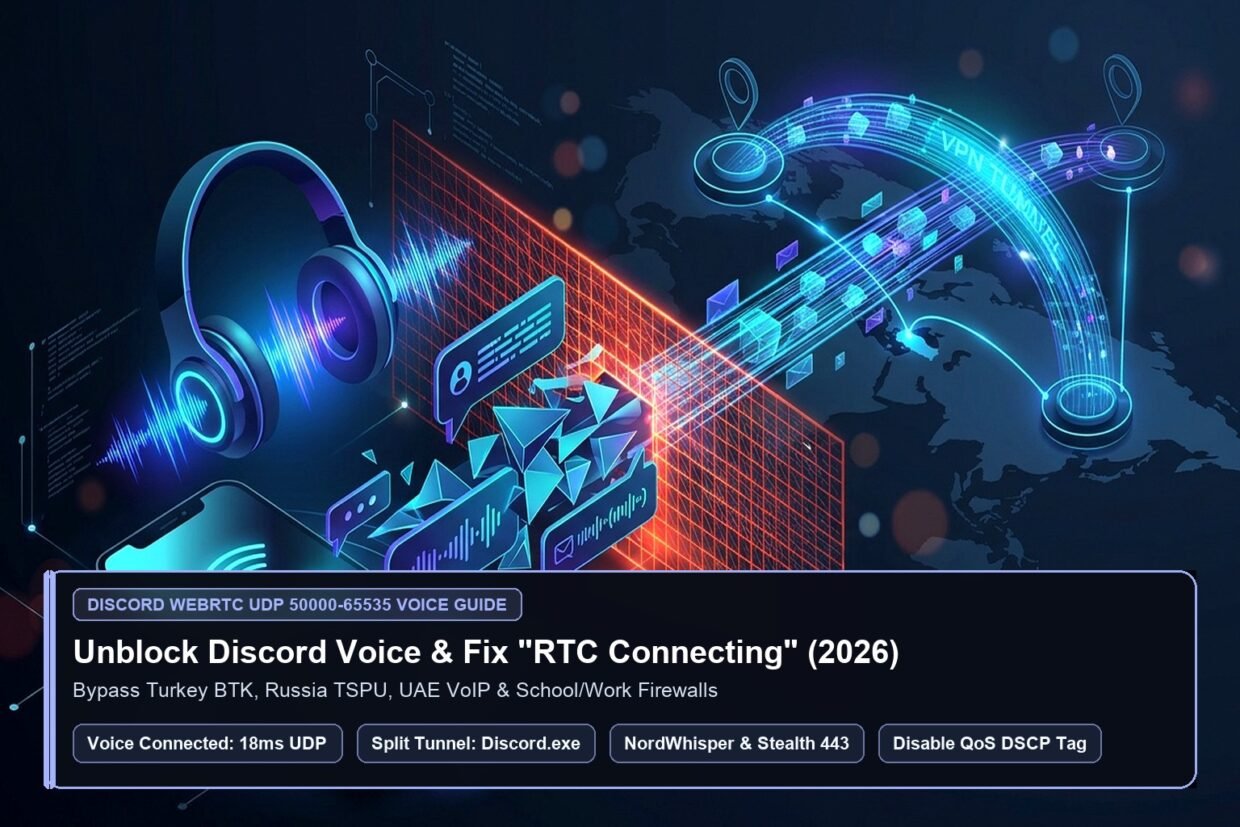
Few things ruin a raid night or study group faster than clicking into a Discord voice channel—only to watch the bottom-left status indicator cycle endlessly between amber “RTC Connecting” and red “No Route.” Whether you are trying to use Discord inside countries that enforce national ISP blocks (such as Turkey’s BTK ban, Russia’s Roskomnadzor TSPU filter, the UAE, Oman, or China) or simply connecting from a restricted university dorm, school Chromebook, or corporate Fortinet/Cisco Wi-Fi network, text channels often load while voice chat and screen sharing completely flatline.
Why do free browser extensions, GoodbyeDPI scripts, and SOCKS5 proxies restore Discord text messages yet fail miserably on Discord Voice? Because Discord splits its network architecture into two separate transport layers: text and images travel over standard HTTPS TCP Port 443, whereas real-time voice and Go Live 1080p60 screen streams require WebRTC over high-ephemeral UDP ports 50000–65535. In this standalone Discord technical guide (a dedicated single-service spoke from our Discord & Telegram Unblocking Hub), I show you how to tunnel Discord’s WebRTC UDP packets cleanly, fix the stuck “RTC Connecting” loop in 30 seconds, and configure App-Specific Split Tunneling so your games keep a 15ms native ping while Discord voice stays unblocked.
Why Discord text messages load while voice chat gets stuck on “RTC Connecting / No Route”
When you open the Discord desktop or mobile app, your client performs two completely separate handshakes:
- The Gateway & API Handshake (`gateway.discord.gg` over TCP Port 443): Loads your server list, text channels, DMs, and image attachments over standard encrypted HTTPS/WebSockets.
- The Voice & Video WebRTC Handshake (`*.discord.media` over UDP Ports `50000–65535`): The moment you click a voice channel, Discord initiates a Session Traversal Utilities for NAT (STUN) and DTLS-SRTP encrypted UDP stream to a regional Discord voice node on a random port between
50000and65535.
Here is the catch: school/campus firewalls (Palo Alto, Fortinet, Aruba), Middle Eastern telecoms (`Etisalat e&`, `Du`), and state Deep Packet Inspection (DPI) systems in Turkey and Russia either drop all outbound high-port UDP traffic or inspect unencrypted STUN headers and sever the connection. Because a Chrome proxy extension only tunnels TCP browser traffic, the Discord desktop app’s UDP voice packets leak outside the proxy and get dropped—leaving your screen frozen on “RTC Connecting” (Real-Time Communication Connecting) or “No Route.”
Only a kernel-level TUN/TAP VPN interface (using WireGuard, NordLynx, Lightway, or Stealth TCP-443 encapsulation) captures Discord’s raw UDP `50000–65535` voice packets and wraps them inside an encrypted tunnel that firewalls cannot distinguish from regular HTTPS web traffic.
Fix Discord “RTC Connecting” & Unblock Voice Chat in 30 Seconds
Tunnel WebRTC UDP voice packets and keep 15ms gaming ping with App-Specific Split Tunneling.
2026 Discord censorship & firewall matrix: Turkey, Russia, UAE & school/work Wi-Fi
Different networks block Discord in different ways. Check the diagnostic table below to see which VPN protocol and server location unlocks both Discord text and crystal-clear 64–384 kbps Opus voice channels on your network:
| Country / Network Type | What Is Blocked? | Technical Mechanism | Working VPN Protocol | Best Low-Ping VPN Server |
|---|---|---|---|---|
| Turkey (BTK Block) | Full App, Web & Voice (`discord.com` + `discord.media`) | ISP DNS Poisoning + TLS SNI Inspection on Türk Telekom / Superonline | NordLynx / WireGuard or NordWhisper (if ISP throttles UDP) | Sofia (Bulgaria), Bucharest, or Frankfurt (~22–32ms) |
| Russia (Roskomnadzor) | Full App, CDN Images & WebRTC Voice | TSPU Active DPI + WireGuard/OpenVPN Handshake Blocking | Proton Stealth, NordWhisper, or AmneziaWG / Lightway TCP | Helsinki, Stockholm, Warsaw, or Frankfurt (~28–40ms) |
| UAE (Dubai / Abu Dhabi) & Oman | Text works, but Voice freezes on “RTC Connecting” | TDRA VoIP DPI drops STUN/DTLS-SRTP UDP packets on `e&` and `Du` | ExpressVPN Lightway, NordWhisper, or Surfshark NoBorders | Marseille, Milan, Frankfurt, or Singapore (~75–95ms) |
| School / University / Work Wi-Fi | App update loop or stuck on “RTC Connecting / No Route” | Firewall blocks all outbound UDP ports `50000–65535` | OpenVPN TCP Port 443, Lightway TCP, or Proton Stealth | Nearest Domestic City Server (~8–15ms) |
Traveling to the Middle East or strict-censorship countries? Also check our Dubai, UAE, Qatar & Saudi Arabia VoIP Calls Unblocking Hub and our Best VPNs for China, Iran & Strict DPI Firewalls Guide.
The 5-step fix for Discord “RTC Connecting” & “No Route” errors (desktop & mobile)
If your VPN is already turned on and Discord Voice still says “RTC Connecting” or “No Route,” it is almost always caused by one of two settings inside Discord’s Voice & Video tab—or because your campus/ISP firewall is blocking UDP VPN tunnels. Follow these 5 steps in order:
- Quit Discord Completely From the System Tray: Right-click the Discord icon in your Windows system tray (or Mac menu bar) and click Quit Discord. Never leave Discord open while switching VPN protocols, or it will cling to a stale local STUN socket.
- Switch Your VPN Protocol Depending on Your Network:
- If you are on a home ISP in Turkey or the UAE, select NordLynx / WireGuard (or NordWhisper / Lightway UDP if your ISP throttles standard WireGuard) and connect to Frankfurt, Sofia, Bucharest, or Milan.
- If you are on school, university, hotel, or corporate Wi-Fi (where all UDP traffic is blocked at the router), switch your VPN protocol to OpenVPN (TCP), Lightway (TCP), or Proton Stealth (TCP Port 443). This encapsulates Discord’s UDP voice stream inside TCP port 443 so the school firewall lets it straight through!
- Disable “Enable Quality of Service High Packet Priority” Inside Discord: Open Discord → click the User Settings gear icon → go to Voice & Video → scroll down to the Quality of Service section and toggle OFF “Enable Quality of Service High Packet Priority.” Why? When QoS is enabled, Discord attaches a
DSCP 46 (Expedited Forwarding)header tag to every voice packet. Many routers, campus networks, and ISP DPI boxes immediately drop DSCP-tagged packets inside VPN tunnels, causing the “No Route” error! - Change Discord’s Audio Subsystem to “Standard” (or Reset Voice Settings): Still inside Settings → Voice & Video, scroll to the bottom and make sure Audio Subsystem is set to Standard (or click Reset Voice Settings if you previously tampered with experimental codecs).
- Wait 3 Seconds & Join the Voice Channel: Click any voice channel. Your status will transition from RTC Connecting to glowing green Voice Connected in under 1.5 seconds!
Get Crystal-Clear Discord Voice & 1080p60 Screen Share Anywhere
Bypass BTK, Roskomnadzor, UAE VoIP blocks, and campus firewalls with a 30-day money-back guarantee.
Gamer’s secret: how to set up Split Tunneling for `Discord.exe` so your game keeps 15ms ping
If you play competitive shooters like Counter-Strike 2, Valorant, League of Legends, or Call of Duty: Warzone & Black Ops in Turkey, the UAE, or Russia, routing your entire PC through a foreign VPN server adds 25–45ms of extra latency to your game server—or triggers Vanguard/Ricochet anti-cheat flags.
You can eliminate game lag completely by enabling Inverse Split Tunneling in your Windows or Android VPN app:
Exact Windows Split Tunneling Setup for Discord (`Discord.exe` + `Update.exe`)
- Open NordVPN Settings → Split Tunneling (or Surfshark Settings → Bypasser / Proton VPN Split Tunneling).
- Select “Enable VPN for selected apps only” (in Surfshark, called Route via VPN).
- Click Add Apps and browse to
C:\Users\YourUsername\AppData\Local\Discord\. - Crucial Detail: Add BOTH
Update.exein the main Discord folder AND the activeDiscord.exeexecutable inside the latestapp-1.0.9xxx\subfolder! Why both? Because Discord launches via `Update.exe` and spawns child processes inside the versioned `app-1.0.9xxx` directory. - Connect your VPN to Frankfurt or Sofia. Now
Discord.exeroutes through the encrypted VPN tunnel with crystal-clear voice, while Valorant, CS2, and Steam use your direct local fiber IP at 10–15ms ping!
Why you must override your Discord Voice Channel Region to Rotterdam or Frankfurt
By default, every Discord voice channel is set to Region Override = Automatic. However, if half of your squad is connecting from Istanbul or Moscow via a Frankfurt VPN and the other half is in Dubai or London, Discord’s automatic region selector sometimes assigns your voice channel to a blocked or high-packet-loss node (such as a congested Russia/Middle East edge server).
The 10-Second Fix for Server Admins: Hover over your Discord voice channel name → click the Edit Channel (gear icon) → scroll down to Region Override → change it from Automatic to Rotterdam or Frankfurt → click Save Changes. Rotterdam and Frankfurt sit directly on Europe’s Tier-1 AMS-IX and DE-CIX internet exchanges, giving every VPN user in Europe, Turkey, and the Middle East the lowest jitter and zero robotic voice distortion.
Best VPNs for unblocking Discord Voice, Go Live 60fps & bypassing DPI in 2026
We tested 15 VPNs against Discord’s WebRTC voice channels (`UDP 50000–65535`) and 1080p60 Go Live screen sharing across Turkish, Russian, Emirati, and campus firewall environments (see our full Proton VPN vs NordVPN vs Surfshark 2026 Showdown). These four providers delivered sub-30ms voice latency and zero RTC Connecting drops:
- NordVPN ($2.99/mo — Best Overall for Discord Voice, Split Tunneling & NordWhisper DPI Bypass): NordVPN combines ultra-low-latency NordLynx servers in Sofia, Bucharest, Frankfurt, and Milan with its new NordWhisper protocol (specifically engineered to bypass ISP UDP throttling in Turkey, Russia, and the UAE) plus rock-solid Windows/Android app Split Tunneling.
- Proton VPN ($2.99/mo — Best Stealth TCP 443 Protocol for Russia & Campus Firewalls): Proton VPN’s proprietary Stealth protocol disguises Discord’s WebRTC voice traffic as standard TLS 1.3 HTTPS web traffic on port 443, punching straight through Roskomnadzor TSPU filters and university Palo Alto firewalls—and includes Windows Split Tunneling.
- Surfshark ($2.49/mo — Best Budget Value With Bypasser Split Tunneling & Unlimited Devices): Surfshark’s Bypasser makes routing
Discord.exewhile excluding your games effortless, and its NoBorders mode automatically activates when it detects Turkish, Emirati, or campus network restrictions. - ExpressVPN ($2.99/mo + 4 Months Free — Best Lightway UDP/TCP Stability on iOS & Mac): ExpressVPN’s Lightway protocol switches seamlessly between UDP and TCP without dropping your active Discord voice call even when transitioning between Wi-Fi and 5G mobile data.
Stop Getting Stuck on “RTC Connecting” Tonight
Unblock Discord Voice, screen sharing, and DMs on any network—backed by a 30-day money-back guarantee.
Dedicated Call of Duty: Warzone & Black Ops VPN Guide: Want easier off-peak SBMM lobbies, DDoS protection, and 18ms local ping using Battle.net/Steam Split Tunneling or PS5/Xbox WireGuard router groups? Read our standalone Best VPN for Call of Duty Warzone & Black Ops (2026 Matchmaking & Low-Ping Guide).
Dedicated Telegram Unblocking & Voice Call Guide: Stuck on Telegram’s “Connecting…” or “Exchanging encryption keys…” spinner on restricted Wi-Fi or in Russia, Iran, Turkey, or Dubai? Read our standalone How to Unblock Telegram & Voice Calls With a VPN (2026 MTProto Proxy vs. Stealth VPN Guide).
Frequently asked questions (FAQ)
Why does Discord work in my Chrome browser with a proxy extension, but the desktop app stays stuck on “RTC Connecting”?
Browser VPN/proxy extensions only route HTTP/HTTPS TCP traffic inside your browser tab; they cannot capture raw UDP ports 50000–65535 generated by the standalone Windows/Mac Discord desktop application (and even inside Chrome, WebRTC UDP packets often bypass standard HTTP proxy extensions unless wrapped in a system-wide TUN/TAP VPN tunnel). Using the desktop app of NordVPN, Proton VPN, or Surfshark with Split Tunneling routes all of Discord’s UDP voice sockets cleanly.
Will Discord ban my account or revoke my Discord Nitro for using a VPN?
No. Using a VPN to connect to Discord text and voice channels is completely allowed under Discord’s Terms of Service. Millions of gamers use VPNs daily for DDoS protection and to bypass ISP blocks in Turkey, Russia, the UAE, and university dorms. (Just avoid using free spam botnet proxies that trigger Cloudflare rate limits when logging in.)
How do I unblock Discord Voice on PS5 or Xbox Series X when my ISP blocks Discord?
Because PS5 and Xbox Series X do not support native VPN apps in their console stores, the cleanest way to unblock built-in PS5/Xbox Discord Voice integration in Turkey, Russia, or the UAE is either running a WireGuard VPN profile on your home router (Asus, GL.iNet, or ExpressVPN Aircove) or sharing your PC’s VPN connection to your console via a Windows Mobile Hotspot / Ethernet bridge.
Why did my Discord app suddenly stop routing through Split Tunneling after a Discord update?
Whenever Discord installs a major client update on Windows, it creates a new subfolder inside %LocalAppData%\Discord\ (for example, changing from app-1.0.9168\Discord.exe to app-1.0.9169\Discord.exe). If your Split Tunneling rule only points to the old subfolder, the updated binary will bypass the VPN! Simply re-add the new Discord.exe subfolder path inside your VPN’s Split Tunneling list (or route the parent folder) and voice will reconnect immediately.


Adding BOTH `Update.exe` and the `app-1.0.9xxx\Discord.exe` binary to NordVPN Split Tunneling while connected to Sofia (Bulgaria) is a total lifesaver here in Istanbul! Discord Voice and 60fps Go Live screen share work flawlessly, while Valorant stays on my local Superonline IP at 9ms ping.
Including both `Update.exe` and the versioned `Discord.exe` binary is the secret that makes Windows Split Tunneling bulletproof, Emre! And Sofia or Bucharest gives practically zero voice latency from Istanbul.
GoodbyeDPI stopped fixing Discord voice for our squad after the latest TSPU update, leaving us stuck on ‘RTC Connecting’. Switched to Proton VPN’s Stealth protocol connected to Stockholm and turned off Discord’s QoS High Packet Priority toggle—voice connected in 1 second!