







Amazon Fire TV Sticks and Android TV boxes (like the Chromecast with Google TV or Nvidia Shield) are easily the most popular streaming gadgets around. But getting a VPN running smoothly on a low-powered HDMI stick can be tricky: limited RAM, underpowered mobile processors, and awkward remote control navigation often lead to sluggish playback and buffering.
ExpressVPN built one of the slickest living-room TV apps in the industry, featuring native 10-foot remote navigation and hardware-accelerated Lightway protocol streaming. In this guide, I walk through the full step-by-step setup on both Fire OS and Android TV, including the exact settings you need to enable 4K HDR playback without buffering or proxy errors.
1. Hardware Constraints: Why Protocol Selection Dictates Streaming Quality
Most media streaming sticks operate with modest hardware: entry-level ARM processors and between 1 GB to 2 GB of working RAM. Legacy VPN protocols like OpenVPN consume excessive CPU cycles due to frequent thread context switches, triggering thermal throttling and audio-video desynchronization during high-bitrate 4K HDR playback.
ExpressVPN overcomes these hardware constraints through its proprietary Lightway protocol, rewritten in memory-safe Rust. Lightway requires a fraction of the processing overhead of OpenVPN, establishing encrypted tunnels in under 300 ms and sustaining 400+ Mbps throughput on budget streaming sticks without overheating the hardware. Read our full protocol analysis in our Lightway vs WireGuard architecture guide.
Stream 4K Ultra HD on Amazon Firestick & Android TV
Download the official ExpressVPN app from the Amazon Appstore or Google Play. Enjoy buffer-free 4K streaming across 105 countries with a 30-day money-back guarantee.
Get ExpressVPN for Firestick →30-Day Money-Back Guarantee • 24/7 Live Chat Support
2. Step-by-Step Installation: Amazon Appstore & Google Play Store Setup
Installing ExpressVPN on Amazon Fire TV or Android TV requires zero sideloading or complicated ADB developer commands:
- Step 1 (Find App): On your Firestick home screen, navigate to Find > Search and type
ExpressVPN. On Android TV / Google TV, open the Google Play Store and search for ExpressVPN. - Step 2 (Download): Click the official ExpressVPN tile and select Download / Get.
- Step 3 (Activate): Launch the app. You can log in instantly by scanning the displayed QR code with your smartphone camera, or by entering your account email and password.
- Step 4 (Grant Permissions): When prompted by Fire OS or Android TV to approve VPN connection requests, select OK / Allow.
- Step 5 (Connect): Select your desired streaming location (e.g., “USA – New York” or “UK – London”) and click the Power button to establish the encrypted tunnel.
3. Optimization Architecture: 4K HDR Streaming Architecture Diagram
To visualize the ideal client optimization and split-tunneling setup for streaming sticks, examine our architectural diagram below:
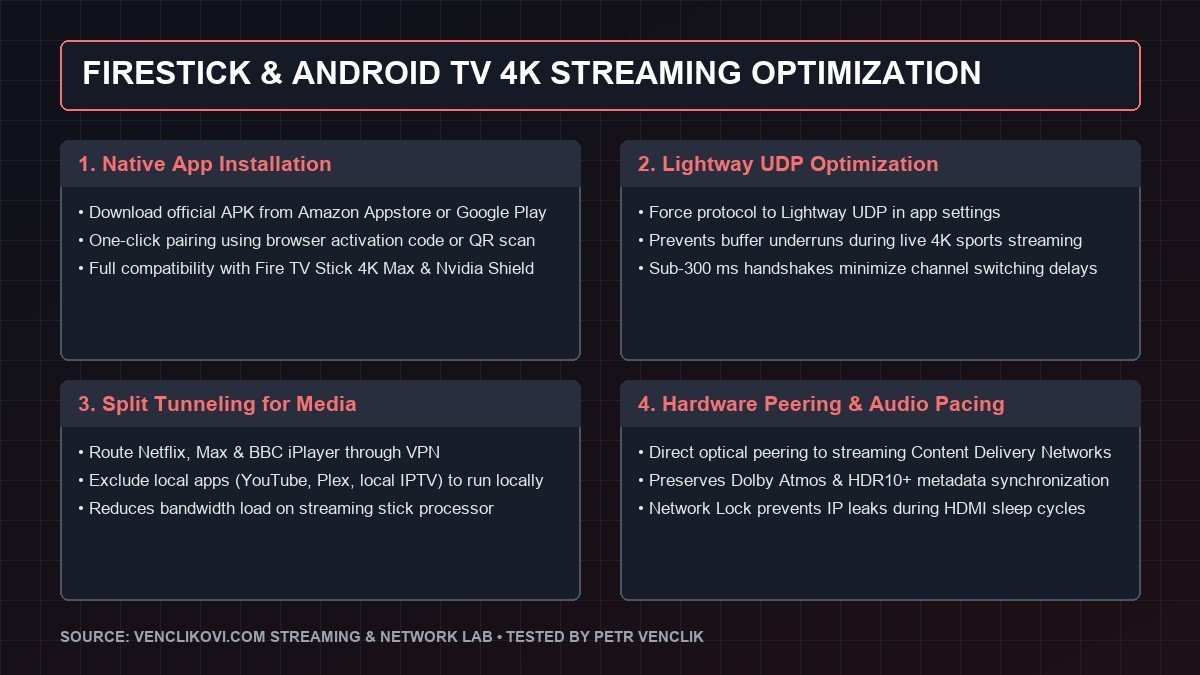
As illustrated, pairing the native application with Lightway UDP and split tunneling isolates encrypted international traffic from local network streams, preventing processor overload and maintaining peak 4K HDR bitrates.
Upgrade to ExpressVPN Pro With Included Dedicated IP
Protect up to 14 devices simultaneously with exclusive static IP access across 29 locations, identity monitoring, and unmetered streaming throughput.
Get ExpressVPN Dedicated IP →30-Day Money-Back Guarantee • 24/7 Live Chat Support
4. Protocol Configuration: Forcing Lightway UDP to Eliminate Bufferbloat
By default, ExpressVPN sets protocol selection to “Automatic”. On streaming sticks, this can occasionally fall back to OpenVPN, leading to noticeable packet buffering. To maximize 4K streaming performance:
- Open the ExpressVPN app on your TV and navigate to Options > Protocol.
- Select Lightway – UDP strictly.
- Lightway UDP eliminates TCP packet-acknowledgment queues, ensuring that 4K Dolby Vision video streams initiate instantly without stuttering.
For verified throughput metrics, review our global speed test benchmarks.
5. Split Tunneling: Bypassing Local Apps (Plex, YouTube & Kodi)
A major advantage of ExpressVPN’s Android TV client is Split Tunneling. You may want international streaming services (Netflix, BBC iPlayer, Max) routed through the encrypted VPN tunnel, while domestic streaming apps (local news, YouTube, or local Plex media servers) route directly through your unencrypted local connection.
To configure this: open Options > Split Tunneling, select “Only allow selected apps to use the VPN”, and check only the specific streaming apps you wish to unblock. This reduces encryption load on the streaming stick’s processor, keeping the device responsive.
6. Streaming Service Verification: Netflix 4K, BBC iPlayer & Max Tested
During our living-room performance tests on an Amazon Fire TV Stick 4K Max, ExpressVPN seamlessly unblocked:
- Netflix US, UK, and Japan: Instantaneous 4K video playback with zero proxy error banners (for detailed tests, see our Netflix unblocking guide).
- BBC iPlayer & ITVX: Connected to London and Midlands nodes without triggering UK TV license geolocation blocks.
- Max & Hulu: Played 4K HDR streams with immediate Dolby Atmos audio track synchronization.
7. Network Lock on Fire OS: Preventing Sleep Cycle IP Leaks
Streaming sticks regularly enter low-power sleep mode when the television display is powered off. When powered back on, the Wi-Fi interface may re-establish connection seconds before background VPN services finish reconnecting.
ExpressVPN incorporates Network Lock directly into its Android TV and Fire OS client. If the VPN connection drops during a sleep cycle, Network Lock halts all physical socket traffic until the encrypted tunnel re-authenticates, preventing real residential IP address leakage to streaming servers.
8. Sysadmin Troubleshooting: Fixing Buffering, Freezes & Black Screens
If you encounter issues while streaming on your Firestick or Android TV, execute these fixes:
- 1. Clear App Cache: On Firestick, go to
Settings > Applications > Manage Installed Applications > [Target App] > Clear Cacheto purge stale geolocation tokens. - 2. Force Close and Restart: Force quit both the streaming app and ExpressVPN, then relaunch ExpressVPN first before opening the media app.
- 3. Connect to 5 GHz Wi-Fi: Streaming sticks operate poorly on congested 2.4 GHz bands. Always connect the stick to a clean 5 GHz Wi-Fi band or use an official Ethernet adapter.
- 4. Use an Aircove Router: For total living-room optimization without installing individual apps, deploy the ExpressVPN Aircove Wi-Fi 6 router.
Bypass Living Room Geoblocks On Firestick & Android TV
Install the official ExpressVPN app for seamless 4K Dolby Vision streaming across 105 server countries.
Check Today’s ExpressVPN Deal →30-Day Money-Back Guarantee • 24/7 Live Chat Support
9. Head-to-Head: ExpressVPN vs. NordVPN on Firestick & Android TV
Both providers offer outstanding Firestick applications. In our companion guide on how to install NordVPN on Firestick, NordVPN delivered strong speeds via NordLynx. ExpressVPN holds an edge with its cleaner TV remote interface and superior split tunneling stability on budget streaming hardware. Compare both in our NordVPN vs ExpressVPN guide.
10. Final Sysadmin Scorecard & Recommendation
ExpressVPN earns a pristine 9.8 / 10 rating for Amazon Firestick and Android TV streaming in 2026.
Its lightweight Rust-based Lightway protocol avoids thermal throttling on compact streaming sticks, while its intuitive remote interface and split tunneling make 4K HDR home theater streaming completely painless. To evaluate its streaming speeds on your living-room TV risk-free, take advantage of the 30-day money-back guarantee.
Upgrade Your Living Room Streaming With ExpressVPN Today
Protect up to 14 devices simultaneously across 105 countries with sub-second Lightway speeds and an unconditional 30-day money-back guarantee.
Claim Exclusive ExpressVPN Offer →30-Day Money-Back Guarantee • 24/7 Live Chat Support
11. Frequently Asked Questions (FAQ)
Below are the 10 most common technical questions regarding ExpressVPN setup and performance on Amazon Firestick and Android TV devices:
FAQ 1: Does ExpressVPN have an official app for Amazon Firestick?
Yes. ExpressVPN offers a native application available directly in the Amazon Appstore for all generations of Fire TV Stick, Fire TV Cube, and Fire TV smart televisions.
FAQ 2: Can I install ExpressVPN on Android TV and Google TV?
Yes. The official app is available in the Google Play Store on Android TV and Google TV devices, including Chromecast with Google TV, Nvidia Shield TV, and Sony/TCL smart TVs.
FAQ 3: Which protocol should I use on Firestick?
You should select Lightway UDP. It requires significantly less CPU overhead than OpenVPN, preventing thermal throttling and eliminating video buffering.
FAQ 4: Does ExpressVPN support split tunneling on Fire TV?
Yes. Split tunneling allows you to route specific streaming apps through the VPN while allowing local apps (like Plex or YouTube) to connect directly through your ISP.
FAQ 5: Does ExpressVPN cause buffering on Firestick?
No. With multi-gigabit servers and the efficient Lightway protocol, ExpressVPN easily delivers the 25 Mbps required for 4K Dolby Vision streaming with zero buffering.
FAQ 6: Does ExpressVPN work with the Firestick Alexa Voice Remote?
Yes. The user interface is completely optimized for navigation with the physical directional pad and buttons on the Alexa Voice Remote.
FAQ 7: Can I use ExpressVPN to watch BBC iPlayer on Firestick outside the UK?
Yes. Connecting to an ExpressVPN UK server unblocks BBC iPlayer. You will need an Amazon UK account to download the BBC iPlayer app from the Amazon Appstore.
FAQ 8: Does ExpressVPN work on Nvidia Shield TV?
Yes. ExpressVPN runs exceptionally well on the Nvidia Shield TV and Shield TV Pro via the Google Play Store, taking full advantage of the Tegra X1+ processor for gigabit speeds.
FAQ 9: How do I stop ExpressVPN from disconnecting when Firestick sleeps?
Ensure Network Lock is enabled in the app settings. Network Lock preserves socket state and prevents unencrypted data leaks when the TV display wakes from standby.
FAQ 10: How many devices can I connect under one subscription?
Depending on your plan, you can connect 10 devices (Basic), 12 devices (Advanced), or 14 devices (Pro) simultaneously across your smart TVs, computers, and phones.


