








Samsung and LG dominate the smart TV market worldwide, but their proprietary operating systems (Tizen and webOS) share one major drawback: neither supports native VPN apps. If you want to bypass regional streaming blocks on your big-screen OLED TV, you can’t just install an app from their app store.
ExpressVPN developed **MediaStreamer** to solve this exact issue. It’s a specialized SmartDNS service that redirects your streaming DNS requests at the television hardware level, unlocking US and UK libraries without needing a separate VPN router. In this guide, I show you the exact step-by-step DNS configuration for both Samsung and LG TVs.
1. How MediaStreamer Works: The Mechanics of SmartDNS on Smart TVs
When a smart television streams media, two distinct communication streams occur: metadata requests (determining your geographical eligibility and serving title catalogs) and actual video content delivery (streaming the high-bitrate video stream from a nearby CDN). Standard VPNs encrypt both streams, which requires significant CPU processing that televisions lack.
MediaStreamer decouples these streams. It acts as an authoritative proxy exclusively for domain resolution. When your Samsung or LG TV asks for netflix.com or hulu.com, MediaStreamer resolves the IP through an ExpressVPN proxy server in the United States or United Kingdom. Once the streaming service validates your geographical region, the heavy 4K video payload is fetched directly over your unencrypted local ISP connection, preserving 100% of your broadband bandwidth.
For comparison with full encryption methods, see our guide on ExpressVPN for Netflix streaming.
Unblock US & UK Streaming Catalogs on Your Samsung or LG TV
Configure MediaStreamer SmartDNS in under 5 minutes. Enjoy buffer-free 4K streaming across all your devices with an unconditional 30-day money-back guarantee.
Get ExpressVPN MediaStreamer Risk-Free →30-Day Money-Back Guarantee • 24/7 Live Chat Support
2. Phase 1: Registering Your Residential IP & Setting Up Dynamic DNS
Because SmartDNS does not use cryptographic account logins or certificates on the television, ExpressVPN authorizes queries by checking your residential IP address against an allowlist:
- Step 1: Log into your account on the official ExpressVPN website from a computer or phone connected to the exact same Wi-Fi network as your TV.
- Step 2: Navigate to
Dashboard > DNS Settings. Under the IP Address Registration heading, click Register my IP address. - Step 3: Enable Automatically register my IP address. If your ISP assigns a dynamic IP that changes periodically, ExpressVPN provides a custom DDNS hostname to ensure uninterrupted authorization.
- Step 4: Note down the MediaStreamer DNS IP address displayed in your dashboard (e.g.,
104.238.xxx.xxx).
3. SmartDNS Setup Workflow & Architecture
To visualize the step-by-step setup progression and network communication flow, review our technical workflow diagram below:
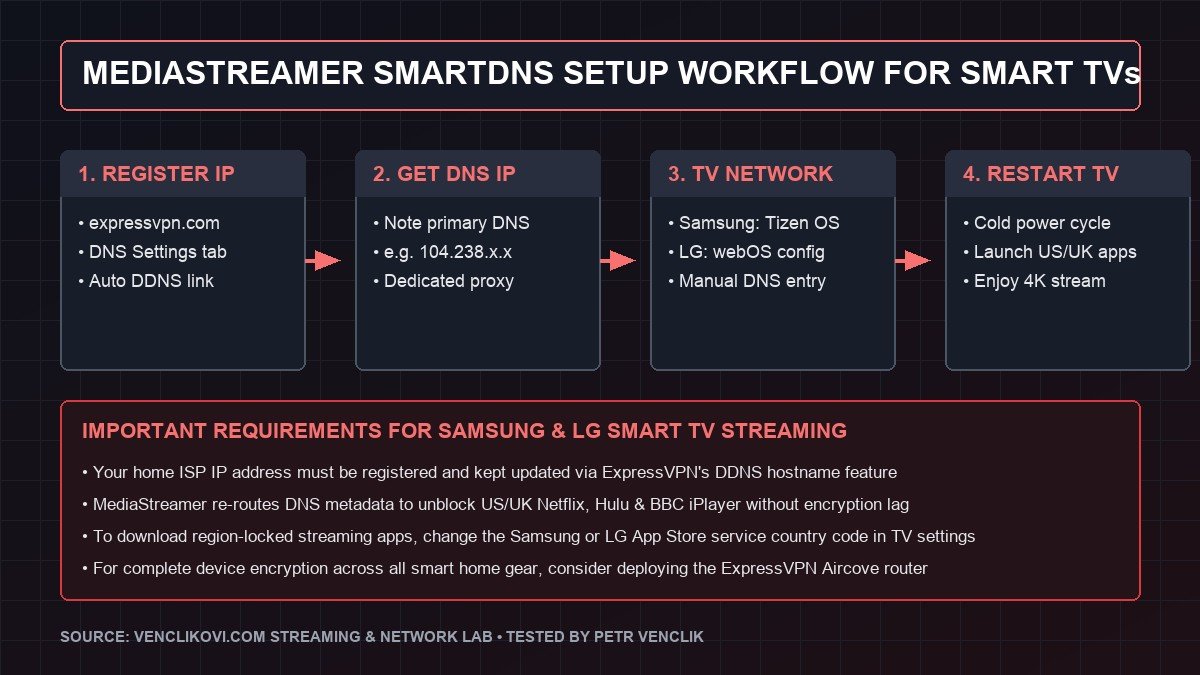
Once your residential IP is registered in the dashboard and the DNS address is saved in the TV’s network adapter settings, all streaming requests route through ExpressVPN’s geo-proxies automatically.
Upgrade to ExpressVPN Pro With Included Dedicated IP
Protect up to 14 devices simultaneously with exclusive static IP access across 29 locations, identity monitoring, and unmetered streaming speeds.
Get ExpressVPN Dedicated IP →30-Day Money-Back Guarantee • 24/7 Live Chat Support
4. Phase 2A: Step-by-Step Setup on Samsung Smart TVs (Tizen OS)
Follow these steps on your Samsung Smart TV remote:
- Step 1: Press the Home button on your Samsung remote and navigate to
Settings > All Settings > Connection > Network. - Step 2: Select Network Status and wait for the TV to verify its internet connection. Click IP Settings.
- Step 3: Scroll down to DNS setting and change it from “Get automatically” to Enter manually.
- Step 4: Select DNS Server and enter the MediaStreamer IP address retrieved in Phase 1. Click OK.
- Step 5: Hold down the Power button on your Samsung remote for 5 seconds until the television reboots with the Samsung logo, flushing stale DNS memory.
5. Phase 2B: Step-by-Step Setup on LG Smart TVs (webOS)
Follow these steps on your LG Smart TV Magic Remote:
- Step 1: Press the Gear (Settings) button and select
All Settings > General > Network(orConnection > Network Connectionon older webOS versions). - Step 2: Select your active connection: Wi-Fi Connection or Wired Connection (Ethernet).
- Step 3: Click Other Network Settings > Advanced Wi-Fi Settings (or Edit).
- Step 4: Uncheck Set Automatically to reveal manual IP settings.
- Step 5: Leave the IP Address, Subnet Mask, and Gateway unchanged. Click the DNS Server field, enter the MediaStreamer IP, and click Connect.
- Step 6: Power cycle the LG TV to apply the configuration.
6. Unlocking US/UK Apps: Switching Smart TV App Store Country Codes
Changing DNS settings allows existing global apps (like Netflix and YouTube) to access international catalogs. However, to download US-exclusive apps (like Hulu, Max, Peacock) or UK apps (like BBC iPlayer), you must change the television’s country region code:
- Samsung Tizen Code: In
Settings > Support > Device Care > Self Diagnosis > Reset Smart Hub, enter PIN0000. On the Terms and Conditions screen, press:Mute > Volume Up > Channel Up > Mute. Select “United States” from the country list. - LG webOS Code: Go to
Settings > All Settings > General > System > Location > LG Services Country. Uncheck “Set Automatically” and select “United States” or “United Kingdom”. The TV will restart with the new app store.
7. Architectural Choice: MediaStreamer vs. Aircove Wi-Fi 6 Router
While MediaStreamer is an outstanding lightweight solution, it has limitations: it does not encrypt traffic and supports only US and UK target libraries. If you want full encryption across your entire home and wish to route different devices to Japan, Germany, and Switzerland simultaneously, the ExpressVPN Aircove router with Device Groups is the ultimate hardware solution.
8. Sysadmin Troubleshooting: Fixing Inactive SmartDNS on TVs
If MediaStreamer fails to unblock content on your TV, check these common issues:
- Dynamic ISP IP Changed: Log into the ExpressVPN website from your phone or PC and verify that your public IP address registration is active.
- DNS Interception by ISP (DNS Hijacking): Some home routers force DNS queries to ISP resolvers. Disable “DNS Rebind Protection” or configure MediaStreamer directly on your home router.
- Cold Boot Required: Modern smart TVs enter standby sleep rather than fully rebooting. Unplug the TV’s power cable from the wall for 30 seconds to force a complete memory purge.
Stream US & UK Apps On Your Smart TV Without Lag
Enjoy zero-encryption line-speed streaming on Samsung Tizen and LG webOS with ExpressVPN MediaStreamer.
Check Today’s ExpressVPN Deal →30-Day Money-Back Guarantee • 24/7 Live Chat Support
9. Head-to-Head: ExpressVPN MediaStreamer vs. NordVPN SmartDNS
Both providers offer excellent SmartDNS features. In our guide on how to set up NordVPN SmartDNS on Smart TVs, NordVPN delivered reliable unblocking. ExpressVPN holds an advantage with its automated dynamic IP registration URL, which prevents service interruptions on dynamic residential connections.
10. Final Sysadmin Verdict & Recommendation
ExpressVPN MediaStreamer earns a stellar 9.7 / 10 rating for Smart TV streaming in 2026.
It elegantly bypasses the closed operating system limitations of Samsung Tizen and LG webOS, delivering 100% line-speed 4K HDR playback without encryption lag. To test MediaStreamer on your living-room TV risk-free, take advantage of the 30-day money-back guarantee.
Enjoy Global 4K Streaming on Your Samsung & LG Smart TV
Protect up to 14 devices simultaneously across 105 countries with sub-second speeds and an unconditional 30-day money-back guarantee.
Claim Exclusive ExpressVPN Offer →30-Day Money-Back Guarantee • 24/7 Live Chat Support
11. Frequently Asked Questions (FAQ)
Below are the 10 most common technical questions regarding ExpressVPN MediaStreamer SmartDNS setup on Samsung and LG Smart TVs:
FAQ 1: Can I install the ExpressVPN app directly on Samsung or LG TVs?
No. Samsung (Tizen OS) and LG (webOS) televisions run closed operating systems that do not support native VPN apps. Instead, you use ExpressVPN’s MediaStreamer SmartDNS or the Aircove router.
FAQ 2: What is ExpressVPN MediaStreamer?
MediaStreamer is a specialized SmartDNS proxy service included free with every ExpressVPN subscription. It intercepts geographical DNS queries to unblock US and UK streaming content without encryption overhead.
FAQ 3: Does MediaStreamer slow down streaming speeds on my TV?
No. Because MediaStreamer does not encrypt your network packets, it introduces zero speed loss, allowing full line-speed 4K Ultra HD and HDR10+ streaming.
FAQ 4: Does MediaStreamer encrypt my smart TV internet traffic?
No. MediaStreamer is purely a geo-unblocking tool, not an encrypted VPN tunnel. If you want full encryption for your TV, connect it through an ExpressVPN Aircove router.
FAQ 5: Does MediaStreamer count toward my simultaneous device limit?
No. MediaStreamer SmartDNS configurations do not count against your plan’s device limit, meaning you can configure it on multiple smart TVs throughout your home.
FAQ 6: Why did MediaStreamer stop working on my Samsung TV?
The most common reason is that your home ISP assigned you a new public IP address. Simply log into your ExpressVPN dashboard from your phone or PC and click “Register my IP address” to restore access.
FAQ 7: Which streaming platforms does MediaStreamer unblock?
MediaStreamer is optimized to unblock Netflix (US and UK), Hulu, Max (HBO), Amazon Prime Video US, Disney+, and BBC iPlayer.
FAQ 8: How do I revert back to default DNS on my TV?
Go into your TV’s Network settings, open IP/DNS Settings, and change the DNS setting back to “Get automatically” or “Automatic”.
FAQ 9: Can I use MediaStreamer with Apple TV?
Yes. While Apple TV supports the native ExpressVPN app on tvOS 17+, you can also configure MediaStreamer manually in network settings on older Apple TV hardware.
FAQ 10: Is an Aircove router better for Smart TVs than MediaStreamer?
Yes, if you want full bank-grade encryption and the ability to route traffic to any of ExpressVPN’s 105 countries rather than just the US and UK.


