







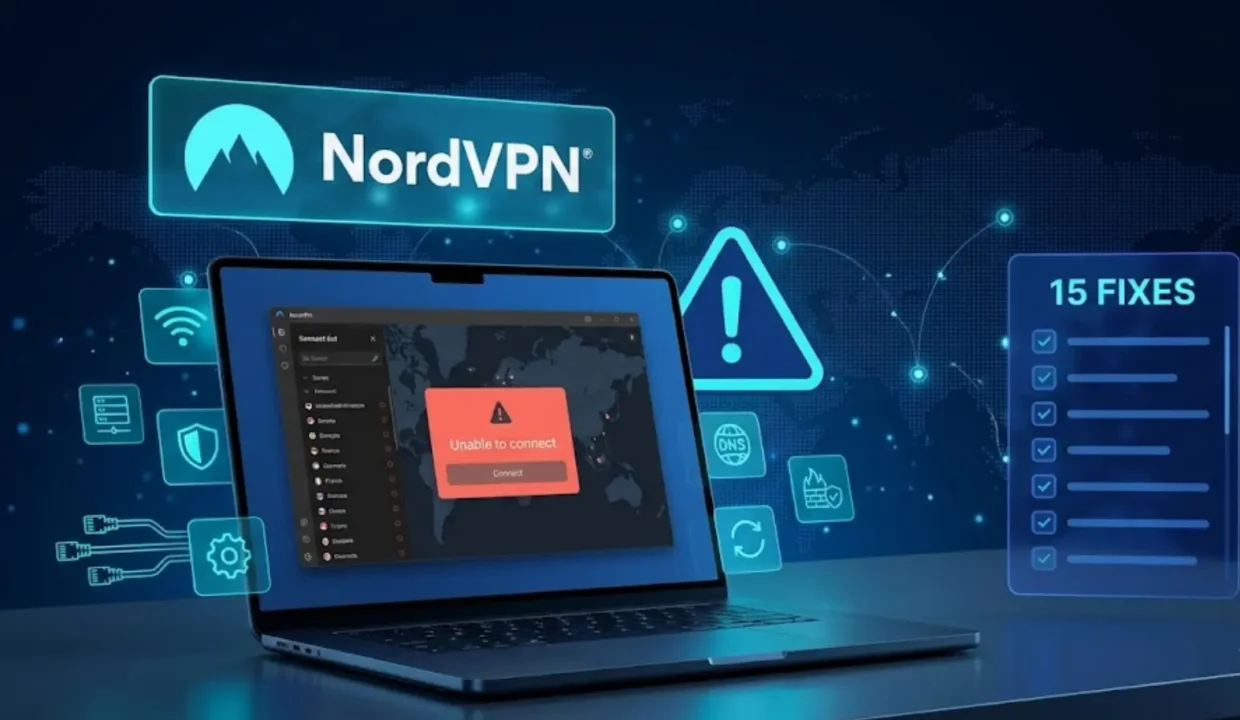
You open the app, hit connect, and nothing happens. Or it connects, then drops thirty seconds later. Or it just sits there spinning on “Finding server” forever. If you searched for this, you already know how frustrating it is, especially if you were counting on that connection for something time sensitive.
The good news: NordVPN connection failures almost always trace back to one of a small number of causes, and most of them take under two minutes to fix. This guide walks through every fix worth trying, in the order that actually solves the problem fastest, based on NordVPN’s own troubleshooting documentation combined with what real users report on Reddit, forums, and support threads when the official steps alone do not cut it.
Quick checklist before you do anything else
Before diving into the longer list, run through these four checks. They solve the problem more often than anything else on this page:
- Is your internet working without the VPN? Turn off NordVPN and try loading a website.
- Is your NordVPN app fully updated? Outdated versions cause a huge share of connection failures.
- Is your subscription still active? Log in to your account and confirm it has not expired.
- Have you restarted the app in the last five minutes? Sounds trivial, but it resolves more cases than any other single step.
If none of those fix it, work through the full list below.
The full list of fixes, in the order to try them
1. Confirm the VPN is actually the problem
Disconnect NordVPN completely and check whether your internet works normally without it. If your connection is down even without the VPN, the issue is your internet service, not NordVPN. Restart your router, check your ethernet cable if you use one, and contact your ISP if the problem continues.
2. Check your login credentials
A surprising number of “won’t connect” cases come down to an expired subscription or a typo in login details. Log in to your NordVPN account dashboard and confirm your subscription is active. If you are setting up NordVPN manually on a router (rather than through the app), remember that manual setup uses separate service credentials, not your regular account password, and these are found in your account’s advanced configuration section.
3. Try a different server
VPN servers occasionally go down for maintenance or get overloaded during peak hours. If one server will not connect, disconnect and pick a different one, ideally in a different country. If a whole region seems to be failing, that is a sign of a temporary outage rather than a problem on your end.
4. Switch your protocol
NordVPN defaults to NordLynx, which is fast and reliable for most people, but some networks block or throttle it. In Settings, try switching to a different protocol:
- NordWhisper is built specifically to get through restrictive networks and firewalls that block typical VPN traffic. If you are on a network that seems to actively resist VPN connections (some school, workplace, or public networks do this), this is the one to try first.
- OpenVPN is the older, extremely well tested fallback if NordLynx and NordWhisper both fail.
5. Check if your ports are being blocked
NordVPN needs TCP port 443 and UDP port 1194 open to function. On most home networks this is automatic and requires no action, but on restrictive networks (corporate wifi, some public networks, certain countries), these ports may be blocked. If your router has a “VPN passthrough” setting, make sure it is enabled. Note that NordVPN does not support port forwarding, since blocking all ports except the ones it needs is part of what keeps the connection secure.
6. Restart the app properly
Not just minimizing it. Fully close the app (force quit on mobile, or close it from the task manager on desktop), wait about ten seconds, then reopen it and try connecting again. This forces a completely fresh connection attempt rather than reusing a stuck session.
7. Update to the latest version
Every update includes bug fixes, and connection issues are frequently resolved between versions. Check for updates from within the app or download the latest version directly from NordVPN rather than a third party app store, which can sometimes lag behind.
8. Reinstall the app completely
If updating does not help, a full reinstall often clears out corrupted files that a simple update leaves behind:
- Uninstall the app completely.
- Restart your device so no leftover app data stays in memory.
- Download the latest version fresh from NordVPN’s website or your app store.
- Sign in and reconfigure your settings from scratch.
9. Check your firewall and antivirus software
Firewalls, including the built in Windows Defender firewall, sometimes flag VPN traffic as suspicious and block it. Try temporarily disabling your firewall to see if that is the cause. If it is, add NordVPN as an exception rather than leaving your firewall off permanently. The same applies to antivirus software: add NordVPN to its exclusions list so it stops interfering with the app’s background processes.
10. Run the built-in diagnostics tool and reset the app
If NordVPN’s background processes stop running (a common cause of the app looking “on” while nothing actually happens), there is a built in fix. Open the folder where NordVPN is installed, find the Diagnostics folder, and run the Diagnostics tool. Selecting “Reset app” restores the app to its default settings and often clears whatever got stuck.
11. Fix the Windows TAP adapter
This one is specific to Windows and shows up as a “TAP driver error” or a connection that fails immediately after you hit connect. Here is how to fix it:
- Open Control Panel, go to Programs, and uninstall “NordVPN Network Tap.”
- Reinstall the TAP driver (reinstalling the NordVPN app usually reinstalls this automatically, or you can download it separately from NordVPN).
- If the issue persists, go to Control Panel > Network and Internet > Network and Sharing Center > Change Adapter Settings, right click the TAP-NordVPN Windows Adapter, select Properties, and confirm Internet Protocol Version 4 (TCP/IPv4) is enabled.
12. Change your DNS servers
If your internet provider’s DNS is interfering with the connection, switching to NordVPN’s own DNS servers can help: 103.86.96.100 and 103.86.99.100. You can set these manually in your device’s network settings, or let the app handle DNS automatically once connected.
13. Turn off battery optimization on mobile
This is one of the most common causes on Android specifically, and it also shows up occasionally on iOS. Power-saving features can pause background apps, including the process NordVPN needs to keep the tunnel open, and the connection fails or drops without any clear error message. Go into your phone’s battery settings and exclude NordVPN from battery optimization or any aggressive power-saving mode.
14. Update your device’s operating system
An outdated operating system can lack the network drivers or security patches a modern VPN protocol depends on. This is easy to overlook because it feels unrelated to the VPN itself, but missing OS updates are a documented cause of connection failures across every platform. Install any pending updates, restart, and try again.
15. Reset your network settings
If nothing above has worked, your device may have corrupted network settings, leftover DNS records, or conflicting routing rules from old configurations. Resetting network settings wipes all of that and gives your device a clean slate. This is a last resort before contacting support, since it also resets saved wifi passwords, so only use it if you are prepared to reconnect to your networks afterward.
If you have worked through this entire list and nothing has fixed it, contact NordVPN’s support team directly. They are available 24/7 through live chat, and having gone through these steps first means they can skip straight to advanced troubleshooting instead of repeating the basics.
Fixing NordVPN on your specific device
Some causes are platform specific. If you already tried the general list above, check here for anything unique to your device.
Windows. Recent Windows updates occasionally disable the network adapter NordVPN relies on, or leave an outdated driver in place. Restart your network adapter from Device Manager, confirm Windows is fully updated, and double check your firewall rules. Old, unused VPN configurations from previous setups can also silently conflict with the current one.
macOS. Connection failures on Mac often come from system level permissions quietly blocking the tunnel, without showing a clear error. Leftover VPN profiles from an old setup are a common culprit too. Review your network permissions in System Settings, remove any unused VPN profiles, and make sure macOS is on its latest version.
iPhone and iPad. Low Power Mode restricts background activity in a way that can prevent the VPN tunnel from forming. Turn it off, delete any old or unused VPN configuration profiles in Settings, and confirm you are on the latest iOS or iPadOS version before trying again.
Android. Aggressive battery management is the most common Android specific cause, closing background apps (including NordVPN’s connection process) without warning. Manufacturers like Samsung, Xiaomi, and OnePlus tend to be more aggressive about this than stock Android. Allow NordVPN to run without battery restrictions, enable background data for the app specifically, and make sure your Android version and security patches are current.
Router setups. If you configured NordVPN directly on your router rather than through the app, double check that you used the manual service credentials from your account dashboard, not your regular login password. Also confirm your router firmware is current, since older firmware sometimes lacks proper support for the VPN protocols NordVPN uses.
A known issue worth knowing about: the Android 16 always-on VPN bug
If you are on Android and specifically use the always-on VPN setting, there is a wider issue you should know about that is not really NordVPN’s fault. Since mid-2025, multiple major VPN providers, including Proton VPN, Mullvad, and TunnelBear, have reported a bug in Android 16 itself that can silently break always-on VPN connections, most often right after the VPN app receives an update while the connection is active. Google acknowledged the reports but for a long stretch had not shipped a reliable fix, and reports of the issue continued appearing well into 2026.
If your VPN gets stuck in a “connecting” state specifically after an app update, and none of the fixes above help, this Android-level bug may be the actual cause rather than anything wrong with NordVPN. The most reliable workaround reported by affected users is a full device restart immediately after any VPN app update, rather than trying to reconnect within the app itself. It is also worth manually confirming your connection is active (see the next section) any time your VPN app updates itself, just to be safe.
How to confirm it actually worked
Do not just trust that the app looks connected. Confirm it with two quick checks:
- IP address check. Search “what is my IP” in your browser before and after connecting. If the location shown changes to match the server you connected to, the tunnel is active.
- DNS leak test. Search “DNS leak test” for a free tool. If the DNS servers shown match your VPN connection rather than your home internet provider, your traffic is properly protected end to end.
When it is not you: server maintenance and outages
Sometimes the fix genuinely is not on your end. VPN providers periodically take servers offline for maintenance or upgrades, and popular server locations can get temporarily overloaded during high traffic periods. If a specific server or country consistently fails to connect while others work fine, that is usually the explanation, and switching to a different location solves it immediately.
FAQ
Why does NordVPN keep disconnecting instead of just failing to connect?
This is usually caused by an unstable internet connection, a server switching you off due to inactivity, or a firewall interrupting the tunnel partway through. Try a different server, enable auto-connect so the app reconnects automatically, and check your firewall settings.
Is it safe to keep trying to connect if the Kill Switch is on?
Yes. That is exactly what the Kill Switch is for. It will block your internet entirely rather than let a failed connection leave you exposed, so a string of failed connection attempts with the Kill Switch on is inconvenient but not a security risk.
Should I contact support right away instead of trying all these fixes myself?
If you are short on time, contacting 24/7 live support immediately is completely reasonable. But working through the quick checklist first (updated app, active subscription, internet working without the VPN) takes under two minutes and resolves the majority of cases without needing to wait for a reply.
Does this happen more on public wifi?
Yes, more than on home networks. Public wifi at cafes, airports, and hotels is more likely to have network level restrictions or unstable connections that interfere with VPN tunnels. If you are traveling and need a reliable connection specifically on public networks, switching to the NordWhisper or OpenVPN protocol tends to help.
Read similar: