



Smart televisions and streaming dongles powered by Android TV and Google TV—such as the Chromecast with Google TV (4K and HD), Sony Bravia, Philips Ambilight, TCL, Hisense, and the Nvidia Shield TV Pro—represent the most versatile home entertainment platforms in existence. Unlike closed television operating systems like Samsung’s Tizen or LG’s webOS, the Android TV framework provides native support for virtual private network interfaces directly at the operating system level.
NordVPN engineers a dedicated, TV-optimized client specifically tailored for Android TV and Google TV devices. It features a streamlined “10-foot user interface” navigable via your physical TV remote’s directional pad (D-pad), automated connection persistence across TV sleep cycles, and hardware-accelerated 4K HDR streaming through the NordLynx protocol. In this step-by-step tutorial, I guide you through both official Google Play Store setup and direct APK sideloading, split tunneling configuration for domestic TV apps, and empirical troubleshooting to eliminate streaming buffering.
1. Supported Hardware: Chromecast, Sony, Nvidia Shield & Google TV
NordVPN’s dedicated Android TV application is universally compatible with any hardware running **Android TV OS 7.0 or higher**, including modern Google TV skins. This includes:
- Google Chromecast: Chromecast with Google TV (4K) and Chromecast with Google TV (HD).
- Smart Televisions: Sony Bravia (XR / OLED / LED), Philips Ambilight Android TVs, TCL Android/Google TVs, Hisense Android TV models, and Xiaomi Smart TVs.
- Dedicated Media Streamers: Nvidia Shield TV Pro (2019 / 2017), Nvidia Shield TV (Tube), Xiaomi Mi Box S (Gen 1 & 2), and Mecool Google TV boxes.
Note: If you stream on an Apple device rather than Android, check our dedicated guide on how to set up NordVPN on Apple TV 4K. For Amazon hardware, see our tutorial on installing NordVPN on Amazon Firestick.
Secure Your High-Speed Encrypted Connection With NordVPN
Protect up to 10 devices simultaneously with audited RAM-only infrastructure, ultra-fast NordLynx speeds, and an unconditional 30-day money-back guarantee.
Get NordVPN With Exclusive 74% Discount →30-Day Unconditional Risk-Free Guarantee • 24/7 Live Customer Support
2. Method 1: Official Google Play Store TV Installation (Fastest)
The most straightforward deployment pathway is installing the native client directly through the integrated TV App Store:
- Launch the Play Store: On your Android TV or Chromecast home screen, navigate to the Apps tab and select the Google Play Store.
- Search for NordVPN: Use the voice search button on your remote (or activate the virtual keyboard) and search for
"NordVPN". - Verify the Developer: Select the official application titled NordVPN: VPN Fast & Secure developed by Nord Security. Click Install.
- Open & Authenticate: Launch the app. The TV screen will present two authentication choices:
- QR Code / Quick Connect Code (Recommended): Scan the on-screen QR code with your smartphone camera, or navigate to
nordaccount.com/linkon your laptop and input the 6-digit numeric PIN displayed on your TV screen. - Manual Password Login: Input your email and password directly using the remote D-pad.
- QR Code / Quick Connect Code (Recommended): Scan the on-screen QR code with your smartphone camera, or navigate to
- Approve Android VPN Configuration: Upon your first connection attempt, Android TV will trigger a system security modal: “NordVPN wants to set up a VPN connection that allows it to monitor network traffic.” Highlight OK and press the remote center button.
3. Method 2: Sideloading via Downloader APK (Unlisted Regions & Travel)
If you purchased your television in a restricted region, are traveling abroad, or have a Google Play account region-locked to a country where VPN applications are restricted, the Play Store may hide the NordVPN listing. Fortunately, because Android TV permits sideloading, you can install the official APK directly:
- Install Downloader: Open the Google Play Store on your TV, search for the free utility Downloader by AFTVnews, and install it.
- Enable Unknown Sources: Go to your TV’s Settings > System > About and click Android TV OS Build rapidly 7 times until the toast prompt confirms: “You are now a developer!” Then return to Settings > Apps > Security & Restrictions > Unknown Sources and toggle **Downloader** to **ON**.
- Download the Official NordVPN APK: Launch Downloader and enter the direct official download URL:
https://nordvpn.com/download/android/(or use the quick shortcode). - Execute Package Installer: Once the APK completes downloading, Downloader will prompt to install. Click Install, followed by Done, and delete the downloaded installation package to conserve internal TV flash storage.
4. Android TV & Chromecast 4K Streaming Architecture
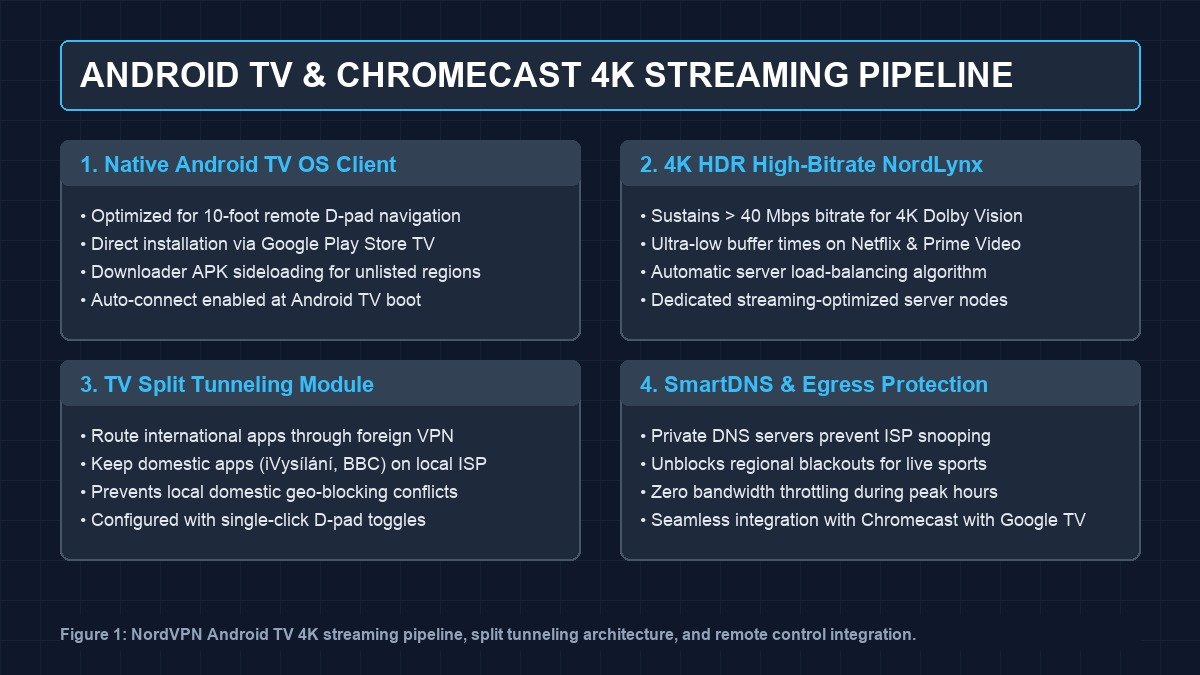
To visualize how the Android TV OS routes international streaming requests while preserving local network connectivity, review the network pipeline diagram below:
Secure Your High-Speed Encrypted Connection With NordVPN
Protect up to 10 devices simultaneously with audited RAM-only infrastructure, ultra-fast NordLynx speeds, and an unconditional 30-day money-back guarantee.
Get NordVPN With Exclusive 74% Discount →30-Day Unconditional Risk-Free Guarantee • 24/7 Live Customer Support
5. Mastering the 10-Foot UI: Remote Control & D-Pad Navigation
Navigating a desktop or mobile application on a television with a directional pad can be infuriating if the UI is poorly scaled. NordVPN’s Android TV app is built strictly for 10-foot interaction:
- Quick Connect: The primary landing tile connects you to the optimal geographic server based on physical latency and server capacity with a single click.
- Country Carousel: Scroll horizontally through an alphabetical list of 111 sovereign countries. Pressing the remote center button connects you to the fastest node in that nation.
- Specialty Profiles: Access Double VPN and Obfuscated nodes directly from the bottom menu bar for enhanced censorship resistance.
- Auto-Connect on Boot: In the app settings (gear icon), enable Auto-Connect. Every time you power on your television from standby, NordVPN establishes the encrypted tunnel before streaming apps launch.
6. Split Tunneling: Isolating Foreign Catalogs from Domestic Apps
A frequent frustration for smart TV owners is that unblocking overseas content on one app inadvertently breaks domestic streaming services on another. For example, connecting your Chromecast to a US VPN node allows you to stream US Netflix and Hulu, but domestic apps (such as BBC iPlayer in the UK, or iVysílání / Voyo in Central Europe) will immediately block access due to international IP detection.
NordVPN’s Android TV app includes built-in Application Split Tunneling:
- Open NordVPN on your TV and select the Settings icon (gear in the top right).
- Click on Split Tunneling.
- Select Disable VPN for selected apps (or inverse routing).
- Check the boxes beside your local domestic apps, local Plex media player, and YouTube.
- Return to the main screen. Selected domestic apps will now bypass the VPN completely using your raw residential ISP, while Netflix, Max, and Prime Video route through your chosen foreign VPN server. Learn more in our complete split tunneling guide.
7. 4K HDR & Dolby Vision Optimization: Eliminating Buffering
Streaming 4K Ultra HD content with Dolby Vision and Dolby Atmos requires a sustained, jitter-free downstream bitrate of at least 25 to 40 Mbps. If packet queues drop or routing hops saturate, streaming algorithms immediately degrade video resolution to 1080p or trigger spinning buffer wheels.
To guarantee seamless 4K playback on Chromecast and Android TV:
- Enforce NordLynx Protocol: Navigate to Settings > Protocol and ensure it is locked to NordLynx. NordLynx eliminates the high CPU packet processing overhead of OpenVPN, which can bottleneck low-power streaming processors found in budget Chromecast and TV sticks.
- Prefer 5 GHz Wi-Fi or Ethernet: If using Chromecast 4K, ensure it is connected to a 5 GHz Wi-Fi band (or use the official Google Ethernet power adapter). Saturated 2.4 GHz Wi-Fi introduces packet jitter that compounds VPN latency.
- Select Low-Load Nodes: If a specific US or UK server buffers, disconnect and reconnect to select a different node in the cluster. If speeds crawl, consult our benchmark fixes on why NordVPN is slow and how to boost throughput.
Secure Your High-Speed Encrypted Connection With NordVPN
Protect up to 10 devices simultaneously with audited RAM-only infrastructure, ultra-fast NordLynx speeds, and an unconditional 30-day money-back guarantee.
Get NordVPN With Exclusive 74% Discount →30-Day Unconditional Risk-Free Guarantee • 24/7 Live Customer Support
8. Resolving Geo-Location Errors, Time Zone Clashes & Sleep Drops
If a streaming app on your Android TV continues to display location errors even with NordVPN active, implement these three sysadmin fixes:
- Force Stop and Clear App Cache: Streaming applications (especially Netflix and Disney+) cache your location metadata locally. Go to Android TV Settings > Apps > See all apps > [Target App] > Force Stop, then select Clear Cache. Relaunch the app with the VPN connected.
- Align Device Time Zone: Sophisticated anti-VPN detection scripts compare your television’s internal system clock against the time zone of your egress IP address. If your IP indicates New York (EST) but your Android TV clock is set to Central European Time (CET), the app flags a proxy mismatch. Temporarily set your TV clock to match your target server location.
- Disable Energy-Saving Background Killing: On aggressive Android TV builds (such as Sony or Philips), the OS may kill background VPN sockets when entering standby. Go to Settings > Apps > Special app access > Energy optimization and set NordVPN to Don’t optimize.
9. Sysadmin Verdict: Living Room Streaming Perfected
NordVPN on Android TV and Chromecast with Google TV represents the pinnacle of living room VPN implementation. By delivering a native, lightweight client optimized for television remotes, full split tunneling support, and wire-speed NordLynx throughput, it completely eliminates the need for complex DD-WRT router flashing or unencrypted SmartDNS hacks.
Whether you are bypassing geo-restrictions for international sports leagues or safeguarding your smart TV from ISP data profiling, NordVPN delivers unmatched stability. You can evaluate the setup completely risk-free using the NordVPN 30-day money-back guarantee.
Secure Your High-Speed Encrypted Connection With NordVPN
Protect up to 10 devices simultaneously with audited RAM-only infrastructure, ultra-fast NordLynx speeds, and an unconditional 30-day money-back guarantee.
Get NordVPN With Exclusive 74% Discount →30-Day Unconditional Risk-Free Guarantee • 24/7 Live Customer Support
10. Frequently Asked Questions (FAQ)
Below are the 10 most common technical questions regarding NordVPN on Android TV, Chromecast streaming, and split tunneling:
FAQ 1: Can I use my existing NordVPN subscription on Android TV?
Yes. NordVPN allows up to 10 simultaneous device connections under a single account. Your Android TV or Chromecast counts as just one device, allowing your computers, smartphones, and tablets to remain protected concurrently.
FAQ 2: Does NordVPN work on older Chromecast devices without a remote?
No. Legacy Chromecast dongles (1st, 2nd, and 3rd Generation, plus Chromecast Ultra) do not run Android TV OS and cannot install applications locally. To protect legacy Chromecasts, you must install NordVPN directly on your home Wi-Fi router (see our NordVPN router installation guide). Only Chromecast with Google TV (with remote) supports direct app installation.
FAQ 3: How do I log into NordVPN on Android TV without typing my password on the remote?
When you open the app on your TV, choose the Log In option. The TV screen will display an automated QR code alongside a 6-digit verification code. Simply scan the QR code with your mobile phone or visit nordaccount.com/link on any browser to authenticate instantly without typing complex passwords on your TV remote.
FAQ 4: Will NordVPN reduce my 4K HDR streaming picture quality?
No. Because NordVPN utilizes the lightweight NordLynx (WireGuard) protocol, encryption overhead is negligible. On connections of 50 Mbps or faster, 4K Ultra HD streams with HDR10 and Dolby Vision maintain maximum bitrates without resolution downscaling or dropped frames.
FAQ 5: Does the Android TV app have a Kill Switch?
Android TV OS features a system-level Kill Switch. Inside your TV settings, navigate to Network & Internet > VPN > NordVPN > Settings gear > Always-on VPN and toggle Block connections without VPN. This ensures zero data leaks if the tunnel drops.
FAQ 6: Can I use split tunneling to exclude local TV apps?
Yes. In the NordVPN TV app settings, navigate to Split Tunneling and select Disable VPN for selected apps. Check your domestic streaming services (such as BBC iPlayer, Voyo, or YouTube) so they route over your direct ISP while other apps remain encrypted through foreign servers.
FAQ 7: Why does Netflix still show my local library on Android TV?
The Netflix app aggressively caches previous location cookies and IP lookups. To resolve this: force stop Netflix in Android TV Settings > Apps > Netflix > Force Stop, select Clear Cache, ensure NordVPN is connected to your target overseas country, and restart Netflix.
FAQ 8: Can I use a NordVPN Dedicated IP on Android TV?
Yes. If you have an active Dedicated IP address assigned to your account (see our NordVPN Dedicated IP review), it appears in the specialty servers menu on your TV. Connecting to a dedicated IP eliminates streaming proxy detection flags completely.
FAQ 9: Does NordVPN work on Sony Bravia and Philips Android TVs?
Yes. All Sony Bravia and Philips Smart TVs manufactured with Android TV or Google TV have full native support for the official NordVPN app via the built-in Google Play Store.
FAQ 10: How do I update the NordVPN app on Android TV?
If installed via the Google Play Store, updates occur automatically in the background. You can also manually check for updates in Google Play Store > Profile Icon > Manage apps & games > Updates. If you sideloaded via APK, download the newer APK version through Downloader and install over the existing build.


Sideloaded on my Nvidia Shield TV Pro and split tunneling works like a charm. Domestic news streams through direct ISP while Netflix 4K routes through US servers with Dolby Atmos without buffering.
Awesome Gary! That split tunneling setup on Android TV gives you the best of both worlds—zero conflict between international catalogs and domestic streaming.