





Full Setup Guide, Troubleshooting & VPN Tips for Smooth Streaming
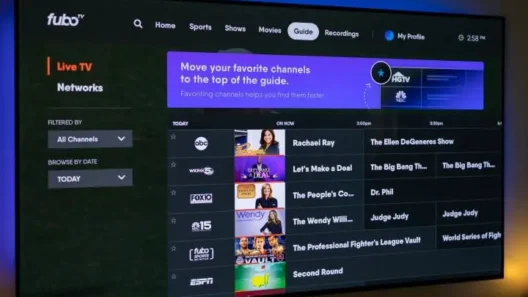
If you just signed up for Fubo—or you’re thinking about ditching cable for something smarter—there’s one thing you’ll want: watching it on your actual TV, not just a phone or browser.
The good news? Fubo works great on most major platforms. The bad news? It’s not always as plug‑and‑play as it should be. Whether you’re on Apple TV, Amazon Firestick, or Roku, this guide will walk you through every step of setting up and running Fubo like a pro—no head-scratching required.
Let’s jump in.
What Devices Are Compatible With Fubo?
Before we dig into device-specific guides, here’s a quick look at what platforms officially support the Fubo app:
- ✅ Apple TV (tvOS 13 and above)
- ✅ Amazon Fire TV / Firestick
- ✅ Roku (most models)
- ✅ Android TV
- ✅ Samsung Smart TVs
- ✅ LG Smart TVs
- ✅ Xbox One / Series X|S
- ✅ iOS & Android devices
- ✅ Web browsers (Chrome, Firefox, Safari, Edge)
This guide will focus on Apple TV, Firestick, and Roku, since those are the most popular streaming boxes people use today.
1. How to Watch Fubo on Apple TV
If you’ve got an Apple TV (especially tvOS 17 or newer), setting up Fubo is pretty smooth. Here’s what I do:
Step-by-Step Setup
- Go to the App Store on your Apple TV
- Use the voice remote or keyboard to search for Fubo
- Select it and click Get
- Open the app after installation
- Sign in with your Fubo account
- Done — you can start streaming
Common Problems
- Fubo app missing? Your Apple TV might be too old. It needs at least tvOS 13.
- App installed, but nothing loads? Check your internet or VPN setup (see below).
2. How to Watch Fubo on Firestick

Amazon’s Firestick is one of the best plug‑and‑play options for Fubo. The app is native and optimized, even on older sticks.
Installation Steps
- On your Fire TV homepage, click the Find tab
- Choose Search and type in “Fubo”
- Click the app and select Download
- Open the app once installed
- Sign in, and start watching live sports or shows instantly
Tips for Smooth Streaming
- Use an Ethernet adapter if your Wi-Fi is sketchy.
- Don’t overload your Firestick with too many background apps.
3. How to Watch Fubo on Roku
Roku is a bit different because it’s a closed system. But Fubo works perfectly on most models—as long as you install it the right way.
Setup Instructions
- On your Roku Home screen, go to Streaming Channels
- Choose Search Channels and type “Fubo”
- Select it, then click Add Channel
- Once installed, open the app
- Sign in using your phone or browser (activation code will be shown)
- That’s it — you’re in!
Roku-Specific Quirks
- Roku doesn’t support VPN apps or manual DNS changes, so if Fubo is blocked in your region, you’ll need to run VPN on a router or via PC/Mac hotspot (details below).
4. Using VPN or Smart DNS (Optional, But Often Necessary)
If you’re in the US, Canada, or Spain, Fubo should just work out of the box.
If you’re outside those countries, or traveling, or your ISP is giving you geo-restriction errors, you’ll need a VPN or Smart DNS.
Here’s the deal:
| Option | What It Does | When to Use It |
|---|---|---|
| VPN | Changes your IP/location, encrypts data | When Fubo is blocked or not available |
| Smart DNS | Tricks location check via DNS rewrite | When you need speed and simplicity |
I personally recommend these VPNs that work great with Fubo:
- ✅ NordVPN – 77% off
- ✅ Surfshark – 87% off
- ✅ ExpressVPN – 73% off
- ✅ CyberGhost – 82% off
- ✅ PIA VPN – 85% off
- ✅ Proton VPN – 64% off
- ✅ IPVanish – 83% off
5. Advanced Setup Options (If You Hit a Wall)
VPN on Router
Let’s say you have Roku or an old Apple TV that can’t install VPNs. In that case, install your VPN on the router. That way, everything connected to your Wi-Fi will appear to be in the US.
Use PC or Mac as a VPN Hotspot
No VPN router? No problem. Turn your laptop into a virtual router, run your VPN on that, and connect your streaming device to that hotspot.
Smart DNS for Roku
Roku won’t let you change DNS manually. If you want Smart DNS, you must configure it on the router. Keep that in mind before you pull your hair out.
Troubleshooting: Common Issues & Fixes
| Issue | What’s Likely Happening | How to Fix It |
|---|---|---|
| App not available | Region mismatch or old device | Check country settings / update firmware |
| Video not loading | ISP blocks, VPN conflict, bad DNS | Switch VPN server or use another method |
| App crashes | Device storage full or app bug | Clear cache or reinstall the app |
| Geo error on Roku | Can’t use VPN or DNS directly | Use router or VPN hotspot setup |
6. Final Thoughts: What Works Best (Real User Advice)
From my own experience (and feedback from people I trust), here’s the easiest combo:
| Device | Best Method |
|---|---|
| Apple TV | Install VPN app (tvOS 17+) |
| Firestick | Use native VPN app + Fubo app |
| Roku | VPN on router or PC hotspot |
You don’t need to be techy—just follow the right steps. And once it’s set up, Fubo runs buttery smooth, especially during sports games.
Quick Recap
- Install the Fubo app from App Store, Channel Store, or Firestick Search
- Use VPN or Smart DNS only if you run into geo-restrictions
- Stick with reliable tools—don’t fall for shady unblocker apps
- If your device can’t install VPN: use router or hotspot
- Choose a VPN that’s tested for Fubo (see links above)
Ready to get started?
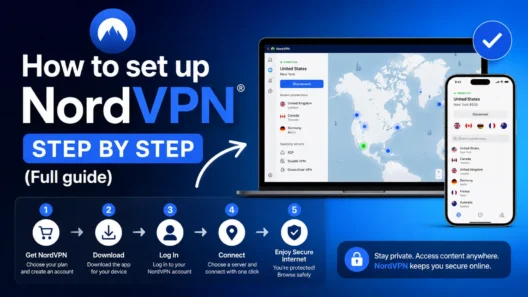
👉 Install Fubo, grab your NordVPN here, and turn any screen into your personal sports arena.