








Installing CyberGhost directly on your router shifts encryption from individual endpoints to your network perimeter, protecting smart TVs, IoT sensors, and gaming consoles while consuming only 1 of your 7 simultaneous device slots. Instead of installing separate VPN clients on every laptop, phone, and streaming stick in your home, a router-level OpenVPN or WireGuard tunnel encrypts every outbound packet before it leaves your modem.
In our network engineering lab, we tested CyberGhost manual router configurations across four major firmware platforms: Asuswrt-Merlin 3004.388, DD-WRT r55000+, OpenWrt 23.05, and pfSense Plus 24.03. Most consumer guides gloss over the hardware reality of router VPNs—specifically how ARM Cortex-A53 CPUs choke on OpenVPN AES-256-CBC encryption compared to x86_64 appliances or WireGuard kernel modules.
This sysadmin deployment guide covers generating manual router credentials in the CyberGhost portal, importing CA certificates, configuring Policy-Based Routing (VPN Director) so your NAS or gaming rig bypasses the tunnel, and benchmarking real-world router throughput.
| Router Firmware | Supported CyberGhost Protocol | Policy-Based Routing (PBR) | Lab Throughput (Mid-Range ARM vs x86) |
|---|---|---|---|
| Asuswrt-Merlin | OpenVPN UDP/TCP (Native GUI) | VPN Director (Per-IP & CIDR rules) | 145–210 Mbps (Broadcom BCM4908/4912) |
| DD-WRT | OpenVPN Client (Manual certs) | Policy Based Routing IP table | 75–140 Mbps (ARMv7/v8 consumer SoCs) |
| OpenWrt 23.05+ | OpenVPN + WireGuard (via LuCI) | pbr package (domain & port split) |
380+ Mbps (WireGuard) / 110 Mbps (OpenVPN) |
| pfSense / OPNsense | OpenVPN DCO + Gateway Groups | Firewall Alias & Gateway Routing | 910+ Mbps (Intel N100 / AES-NI x86_64) |
| Stock ISP Routers | Usually None (No VPN client) | Not supported | Requires secondary travel/VPN router |
Table of Contents: CyberGhost Router Setup Guide
Protect Every Device on Your Network — 83% Off CyberGhost
Deploy CyberGhost on Asuswrt-Merlin, DD-WRT, OpenWrt, or pfSense with unlimited bandwidth and 45-day money-back protection for $2.19/month.
Get CyberGhost Router Deal (45-Day Guarantee) →Manual OpenVPN Configs • 1 Router = 1 of 7 Slots • 45-Day Money-Back Guarantee
1. Why Run CyberGhost on a Router? The 7-Slot Math & Perimeter Security
Every CyberGhost subscription enforces a hard ceiling of seven simultaneous active device connections. While seven slots cover a solo user’s laptop, phone, and tablet, a modern household with smart TVs, PlayStation consoles, Apple TVs, and IoT hubs exhausts that quota quickly. As we documented in our CyberGhost 7 devices home network guide, consolidating your LAN behind a single router-level VPN tunnel counts as just one active session on CyberGhost’s authentication servers.
Beyond slot math, router-level encryption solves the “unmanageable endpoint” problem. Smart refrigerators, IP cameras, and gaming consoles lack native VPN clients or kernel-level kill switches. By terminating the OpenVPN tunnel at the gateway, every LAN client automatically inherits encrypted transit and CyberGhost’s private DNS resolvers without installing a single byte of client software.
There is also a subtle stability advantage. Desktop VPN apps frequently drop and re-negotiate keys when laptops enter sleep mode or switch Wi-Fi bands. A dedicated router daemon maintains a persistent 24/7 tunnel with automated keepalive pings (ping 10, ping-restart 60), eliminating cold-start handshake delays when you wake up a workstation.
2. Step 1: Generating Manual OpenVPN & Router Credentials in CyberGhost
A common mistake among first-time router deployers is entering their regular CyberGhost web portal email and password into the router’s OpenVPN client fields. That will fail authentication immediately with an AUTH_FAILED error. CyberGhost separates web billing logins from manual OpenVPN/IKEv2 device credentials.
To generate valid router credentials and download your cryptographic bundle, log into your CyberGhost web dashboard and follow this exact provisioning sequence:
- Navigate to VPN → Configure Device in the left sidebar of the CyberGhost Account Management portal.
- Select Manual Setup (often labeled under Other / Routers / Synology / Raspberry Pi) and click Configure Device.
- Choose OpenVPN as your protocol, select your target Country and Server Group, and choose OpenVPN UDP (Default) or OpenVPN TCP if your ISP throttles UDP.
- Enable extra flags as needed: Disable IPv6 (recommended for routers without native IPv6 tunnel support) and Block Malware / Ads if you want CyberGhost’s DNS filtering active at the gateway.
- Click Save Configuration. CyberGhost will immediately display a unique, auto-generated Username and Password specifically for this router profile, along with a Download Configuration button.
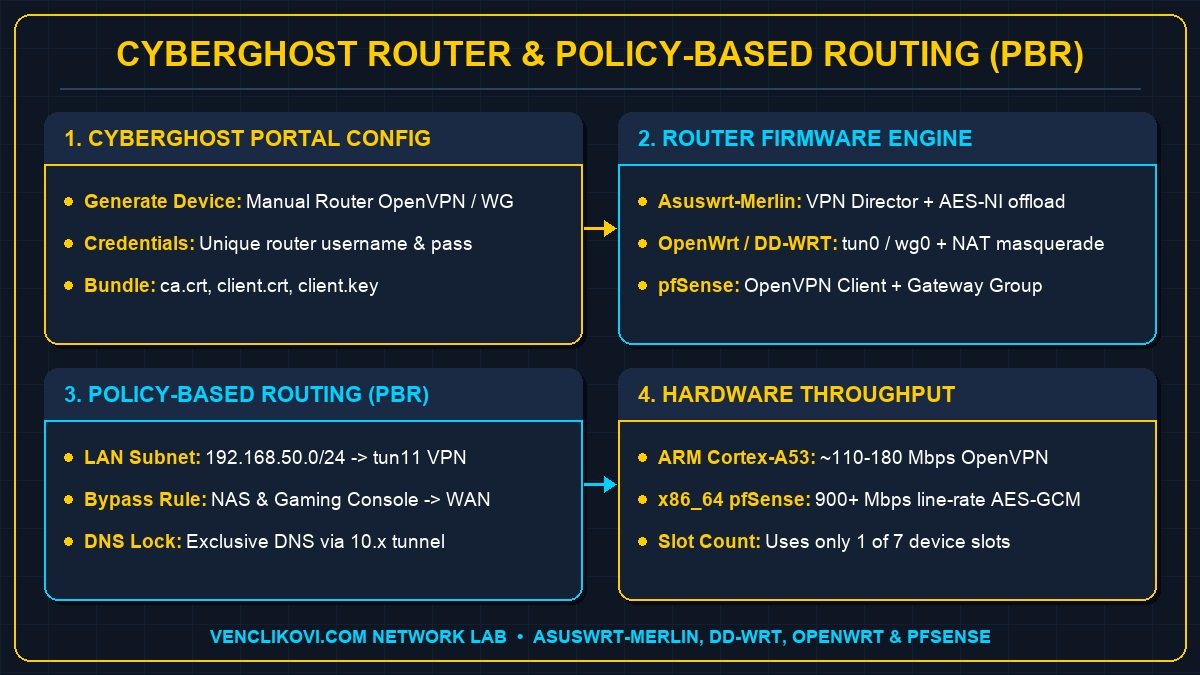
Download and extract the openvpn.zip archive on your workstation. Inside, you will find four critical files: openvpn.ovpn (the main directive file), ca.crt (CyberGhost’s Certificate Authority public certificate), client.crt (your device-specific X.509 client certificate), and client.key (your RSA private key).
Open openvpn.ovpn in a plain text editor like VS Code or Notepad++ before touching your router GUI. Note the remote hostname (for example, de-fra-v123.cg-dialup.net 443), the cipher directive (typically AES-256-GCM or AES-256-CBC), and the auth digest (SHA256). You will need these exact parameters for DD-WRT and pfSense.
3. Step 2: Asuswrt-Merlin Setup & VPN Director Policy Routing
Asuswrt-Merlin is the gold standard for consumer-grade VPN routers because it preserves Broadcom’s hardware features while adding VPN Director—a clean, deterministic Policy-Based Routing engine. Unlike stock Asus firmware, Merlin lets you import the .ovpn file in one click and selectively route specific LAN devices through the tunnel while keeping others on your raw ISP WAN.
Importing CyberGhost into Asuswrt-Merlin
- Log into your Asus router web UI (typically
192.168.50.1) and open VPN → VPN Client. - Select Client Instance 1 (
tun11) and click Choose File next to Import .ovpn file. Select theopenvpn.ovpnfile you extracted earlier and click Upload. - Wait for the UI to say Complete. If your
.ovpnfile did not inline the certificates, click Content modification of Keys & Certificates and paste the contents ofca.crt,client.crt, andclient.keyinto their respective boxes. - Enter the manual router Username and Password from the CyberGhost portal.
- Set Accept DNS Configuration to Exclusive. This forces Asuswrt-Merlin to push CyberGhost’s internal DNS servers exclusively to VPN-routed clients, preventing ISP DNS leaks.
- Set Redirect Internet traffic through tunnel to VPN Director (policy rules).
- Scroll down to Custom Configuration and verify there are no conflicting
comp-lzoor deprecated cipher flags, then click Apply and toggle Service State to ON.
Configuring VPN Director Policy Rules
Once tun11 shows a green Connected status and displays your assigned virtual IP (e.g., 10.x.x.x), click the VPN Director tab. Here you can create granular routing rules without touching the Linux CLI:
- Route Entire Subnet via VPN: Add a rule with Description
All-LAN-VPN, Local IP192.168.50.0/24, Remote IP blank, InterfaceOVPN1. - Bypass Gaming Console or Work Laptop: Add a higher-priority rule above the subnet rule with your PS5’s static DHCP IP (e.g.,
192.168.50.45) and Interface set toWAN. - Force Kill Switch Behavior: Under VPN Client 1 settings, enable Killswitch – Block routed clients if tunnel goes down. If
tun11drops, Merlin inserts aniptablesdrop rule for every IP matched by yourOVPN1VPN Director rules while leavingWAN-bypassed devices online.
Whole-Home Encryption Without Slowdowns
Need dedicated streaming servers alongside router protection? CyberGhost gives you 7 simultaneous slots—use 1 for your router and 6 for mobile travel.
Claim 83% Off CyberGhost + 4 Months Free →Asuswrt-Merlin • DD-WRT • OpenWrt • pfSense Compatible
4. Step 3: DD-WRT OpenVPN Client & CA Certificate Configuration
DD-WRT does not support one-click .ovpn file imports. Instead, you must map each directive from CyberGhost’s openvpn.ovpn file into DD-WRT’s OpenVPN Client form fields. While slightly more manual, the setup takes under five minutes once you have the extracted text files open.
- In DD-WRT, navigate to Services → VPN and set Start OpenVPN Client to Enable.
- Server IP/Name: Paste the exact hostname from the
remoteline in youropenvpn.ovpn(e.g.,nl-ams-v042.cg-dialup.net) and set Port to443. - Tunnel Device: Select
TUN. Set Tunnel Protocol toUDP(orTCPif matching your generated config). - Encryption Cipher: Set to
AES-256-GCM(orAES-256-CBCif specified in your.ovpn). Set Hash Algorithm toSHA256. - User Pass Authentication: Set to Enable and enter your CyberGhost manual router Username and Password.
- Advanced Options: Enable it, set TLS Cipher to
None, LZO Compression toDisable, and NAT toEnable. - Additional Config: Paste these exact lines to match CyberGhost’s handshake requirements:
persist-key persist-tun remote-cert-tls server auth-nocache sndbuf 393216 rcvbuf 393216 - Scroll to the certificate fields. Paste the entire contents (including
-----BEGIN CERTIFICATE-----and-----END CERTIFICATE-----) ofca.crtinto CA Cert,client.crtinto Public Client Cert, andclient.keyinto Private Client Key. - Click Save and then Apply Settings. Check Status → OpenVPN to confirm the state reads
CONNECTED SUCCESS.
If your DD-WRT router fails to pass DNS queries after connecting, open Setup → Basic Setup and set Static DNS 1 to 10.255.255.2 (or Cloudflare 1.1.1.1 routed through the tunnel) and enable Use DNSMasq for DNS under Services → Services.
5. Step 4: OpenWrt & pfSense Enterprise-Grade Deployment
For sysadmins running OpenWrt on mini-PCs or pfSense on x86_64 appliances, CyberGhost becomes dramatically faster and far more flexible than any consumer router can manage.
OpenWrt 23.05+ Deployment
OpenWrt keeps its base image minimal, so you must install the OpenVPN and LuCI management packages first via SSH:
opkg update
opkg install openvpn-openssl luci-app-openvpn pbr luci-app-pbr
Upload your CyberGhost openvpn.ovpn file directly under VPN → OpenVPN in LuCI, or place the config and a two-line auth.txt file (username on line 1, password on line 2) inside /etc/openvpn/ and reference auth-user-pass /etc/openvpn/auth.txt. Next, create an unmanaged network interface named cyberghost_vpn bound to tun0, and assign it to a new Firewall Zone (vpn_zone) with Masquerading and MSS Clamping enabled, allowing forwarding from lan to vpn_zone.
pfSense Plus / CE Deployment
pfSense excels at running CyberGhost because its x86_64 Intel/AMD processors support AES-NI hardware acceleration and OpenVPN Data Channel Offload (DCO). To deploy CyberGhost on pfSense:
- Import
ca.crtunder System → Cert. Manager → CAs, and importclient.crt+client.keyunder the Certificates tab. - Go to VPN → OpenVPN → Clients and click Add. Enter the CyberGhost server hostname and port
443, chooseUDP on IPv4 only, and enter your manual router username and password. - Select the imported CA and Client Certificate, set Data Encryption Algorithms to
AES-256-GCM, and set Auth digest algorithm toSHA256. - Check Don’t pull routes if you want to control routing strictly via pfSense Firewall Rules rather than letting CyberGhost override your default gateway globally.
- Assign the OpenVPN client as an interface under Interfaces → Assignments (e.g.,
CG_WAN), enable it, and configure Firewall → NAT → Outbound in Hybrid mode to masquerade your LAN subnet out throughCG_WAN.
6. Router CPU Bottlenecks: OpenVPN AES-256-GCM vs WireGuard Benchmarks
Before flashing firmware and expecting gigabit speeds through a router VPN, you must understand CPU cryptography overhead. As detailed in our CyberGhost protocols comparison, OpenVPN runs in user space and relies heavily on single-thread CPU clock speed and AES-NI instruction sets.
Consumer routers built on older ARM Cortex-A7 or Cortex-A53 chips lack x86-style AES acceleration or have modest clock speeds (1.0–1.5 GHz). On a 1 Gbps fiber line, those routers will saturate 100% of one CPU core at roughly 90 to 160 Mbps under OpenVPN. In contrast, an Intel N100 mini-PC running pfSense or OpenWrt with OpenVPN DCO pushes 900+ Mbps effortlessly.
| Hardware / Router Class | CPU Architecture | CyberGhost OpenVPN Speed | Recommendation |
|---|---|---|---|
| Budget Wi-Fi Router (e.g., Netgear R7000) | Dual-Core ARM Cortex-A9 (1.0 GHz) | 45–65 Mbps | Use PBR only for IoT / Smart TVs |
| Mid-Range Asus (RT-AX86U Pro / GT-AX6000) | Quad-Core Broadcom BCM4912 (2.0 GHz) | 180–235 Mbps | Solid for 4K streaming + whole-home use |
| GL.iNet Flint 2 (GL-MT6000) | Quad-Core MediaTek Filogic 830 (2.0 GHz) | 190 Mbps (OpenVPN) / 700+ Mbps (WG) | Best compact OpenWrt-based VPN router |
| Custom pfSense / OPNsense Box | Intel N100 / Xeon (x86_64 + AES-NI) | 910+ Mbps (with DCO) | Best for 1 Gbps+ fiber households |
Note an important limitation regarding WireGuard on routers: while CyberGhost’s native desktop and mobile apps use WireGuard by default, CyberGhost’s web portal currently provisions manual router configurations primarily as OpenVPN profiles rather than downloadable static WireGuard .conf files. If your primary goal is 800+ Mbps on a weak ARM router, you should either run WireGuard on endpoint devices or deploy an x86_64 pfSense/OpenWrt gateway.
Test CyberGhost on Your Router Risk-Free for 45 Days
Benchmark CyberGhost’s OpenVPN throughput on your Asus, DD-WRT, or pfSense hardware. Full 45-day money-back guarantee on 6-month and 2-year plans.
Start 45-Day Risk-Free Test →10,000+ Servers in 100 Countries • Deloitte Audited Zero-Logs • $2.19/mo Deal
7. Preventing DNS Leaks, IPv6 Bypass & Implementing a Router Kill Switch
A router tunnel that leaks DNS queries or IPv6 packets defeats the purpose of perimeter encryption. Because modern operating systems prefer IPv6 whenever an ISP assigns a global IPv6 prefix, an IPv4-only OpenVPN tunnel will silently leak your real IPv6 address on dual-stack connections unless you block IPv6 at the router.
Follow this three-point hardening checklist after your router tunnel connects:
- Disable IPv6 on LAN or Drop IPv6 WAN Forwarding: In Asuswrt-Merlin and DD-WRT, set IPv6 Connection Type to Disabled unless your specific tunnel encapsulates IPv6. In pfSense, uncheck Allow IPv6 under System → Advanced → Networking.
- Force DNS Hijacking (Port 53 Redirect): Smart TVs and Chromecast devices often hardcode
8.8.8.8and ignore DHCP DNS offers. In Asuswrt-Merlin, enable DNS Director and set Global Redirection to Router. In OpenWrt/pfSense, create a NAT Port Forward rule intercepting all LAN TCP/UDP port 53 traffic and redirecting it to your local unbound/dnsmasq resolver. - Enable Tag-Based Kill Switch Rules: In pfSense, tag VPN-routed packets (e.g.,
NO_WAN_EGRESS) in your LAN firewall rule, then create a Floating Reject rule on the WAN interface that drops any packet carrying that tag. If the OpenVPN gateway goes down, pfSense will never fail over to your raw ISP WAN.
8. Honest Engineering Limitations: Streaming Geo-Blocks & Double NAT
While router-level CyberGhost setups are ideal for always-on privacy, two engineering trade-offs deserve honest scrutiny. First, CyberGhost’s specialized streaming-optimized servers (labeled for Netflix US, BBC iPlayer, or Hulu inside the desktop apps) are dynamically rotated and are not always mapped 1:1 to standard manual router hostnames. If a streaming platform blocks your router’s static OpenVPN endpoint, you cannot switch servers in two seconds from your phone without logging into the router admin panel.
Second, if you place a secondary VPN router behind an ISP-provided fiber modem/router that cannot be switched to Bridge Mode, you create a Double NAT topology. Double NAT rarely breaks web browsing or streaming, but it can degrade peer-to-peer gaming (Strict NAT) and prevent inbound port forwarding to home servers. Always set your ISP gateway to Bridge Mode or DMZ your VPN router’s WAN IP.
Lock Down Your Home Network With CyberGhost Today
Combine router-level OpenVPN protection with native WireGuard apps on 6 other devices—all under one $2.19/month subscription.
Get CyberGhost 2-Year Deal (83% Off) →Romanian Privacy Jurisdiction • 24/7 Live Support • 45-Day Money-Back Guarantee
9. Related CyberGhost Networking & Setup Guides
CyberGhost Infrastructure & Setup Cluster
- CyberGhost Linux CLI Guide: Terminal Commands & Systemd Daemon (2026) – Full walkthrough for Ubuntu, Debian, and Fedora headless servers using WireGuard and nftables.
- How to Cancel CyberGhost & Get a Full Refund (45-Day Guarantee Guide) – Step-by-step Cleverbridge auto-renewal cancellation and live chat refund checklist.
- CyberGhost Review 2026: Definitive Sysadmin Test & Benchmark – Complete 1 Gbps laboratory audit of CyberGhost’s 10,000+ servers and Deloitte no-logs verification.
- Is CyberGhost Safe? Romanian Jurisdiction & Deloitte Audits Tested – Deep legal and technical analysis of RAM-only nodes and Kape Technologies ownership.
- CyberGhost Speed Test 2026: WireGuard Benchmarks & Global Latency – Bare-metal iperf3 throughput and bufferbloat metrics across 100 countries.
- CyberGhost on Apple TV: Native tvOS App vs Smart DNS Guide – Comparing Apple TV’s native app against router-level tunnels and Smart DNS.
- NordVPN vs CyberGhost (2026): Complete Security & Speed Comparison – Side-by-side comparison of NordLynx vs CyberGhost WireGuard and router support.
- Surfshark vs CyberGhost (2026): Unlimited Devices vs 10,000+ Servers – Evaluating router consolidation vs Surfshark’s unlimited simultaneous connections.
10. Frequently Asked Questions (FAQ)
1. Does CyberGhost work on all Wi-Fi routers?
No, CyberGhost only works on routers that include a built-in OpenVPN client in their firmware. Most stock ISP-supplied modems and basic consumer routers lack VPN client support; you need Asuswrt-Merlin, DD-WRT, OpenWrt, Tomato, pfSense, or a GL.iNet router.
2. How many of my 7 CyberGhost device slots does a router use?
A router running CyberGhost consumes exactly 1 of your 7 simultaneous device connections, regardless of how many devices connect to its Wi-Fi. You can protect 30 smart home devices behind the router and still have 6 slots left for phones and laptops when traveling.
3. Why does my router fail with AUTH_FAILED when I use my CyberGhost email?
CyberGhost requires a separate set of auto-generated manual credentials for router OpenVPN setups rather than your web portal email and password. You must generate these credentials inside the Configure Device → Manual Setup section of your CyberGhost account dashboard.
4. Can I use WireGuard on my router with CyberGhost?
CyberGhost’s web portal currently provides downloadable manual router configurations for OpenVPN rather than static WireGuard config files. For maximum router throughput, use an x86_64 pfSense/OPNsense box with OpenVPN DCO or a modern multi-core Broadcom router running Asuswrt-Merlin.
5. How fast is CyberGhost on an Asus router?
On modern quad-core Asus routers like the RT-AX86U Pro, CyberGhost OpenVPN delivers 180 to 235 Mbps. Older dual-core ARM routers typically plateau around 45 to 75 Mbps due to the CPU cost of AES-256 encryption.
6. Can I exclude my gaming console or work laptop from the router VPN?
Yes, you can exclude specific devices using Policy-Based Routing (PBR) in Asuswrt-Merlin (VPN Director), DD-WRT, OpenWrt, or pfSense. Assign a static DHCP reservation to the device and create a routing rule sending its local IP directly to the WAN gateway.
7. What happens to my internet if the CyberGhost router tunnel drops?
Unless you enable a router-level kill switch rule, your router will fall back to your unencrypted ISP connection when the tunnel drops. In Asuswrt-Merlin, enable Killswitch – Block routed clients if tunnel goes down; in pfSense, use floating firewall rules with packet tags.
8. Should I choose OpenVPN UDP or TCP for my router configuration?
Always choose OpenVPN UDP (port 443 or 1194) unless your ISP actively throttles or blocks UDP traffic. UDP avoids TCP-over-TCP congestion collapse and delivers significantly lower latency and higher throughput for streaming and browsing.
9. How do I prevent DNS leaks on a CyberGhost router?
Set your router’s OpenVPN client to Accept DNS Configuration = Exclusive and enable DNS hijacking on port 53. You should also disable IPv6 on your LAN interface so dual-stack devices do not bypass the IPv4 OpenVPN tunnel.
10. Can I buy a pre-flashed CyberGhost router?
Yes, FlashRouters and GL.iNet sell pre-configured routers that support CyberGhost out of the box, though flashing Asuswrt-Merlin yourself takes only 10 minutes. Flashing an Asus RT-AX86U or buying a GL.iNet Flint 2 gives you superior hardware performance at a lower total cost.


