









If you’re using an iPhone or iPad and tired of seeing non-stop ads while reading articles, playing games, or trying to watch a simple video, I get it. It’s frustrating. One second you’re chilling with your phone, and the next thing you know, a full-screen video ad hijacks your screen for thirty seconds. And that’s not even counting those creepy banners tracking you across every page, just because you once googled winter tires.
Now here’s the good part. You can block this stuff. Like actually block it in a way that works across apps, not just in Safari.
After testing this thoroughly, I can tell you there are only two tools worth using: AdGuard and NordVPN with Threat Protection Pro.
First, let’s address the Apple elephant in the room
Apple’s iOS is a locked-down system. That’s great for security, but it also means it’s a nightmare when it comes to installing system-wide ad blockers. On Android, you can slap on a custom app and call it a day. On iPhone, not so fast.
So when it comes to blocking ads, especially those inside apps and games, you need to get a little smarter. And that’s exactly where AdGuard and NordVPN step in.
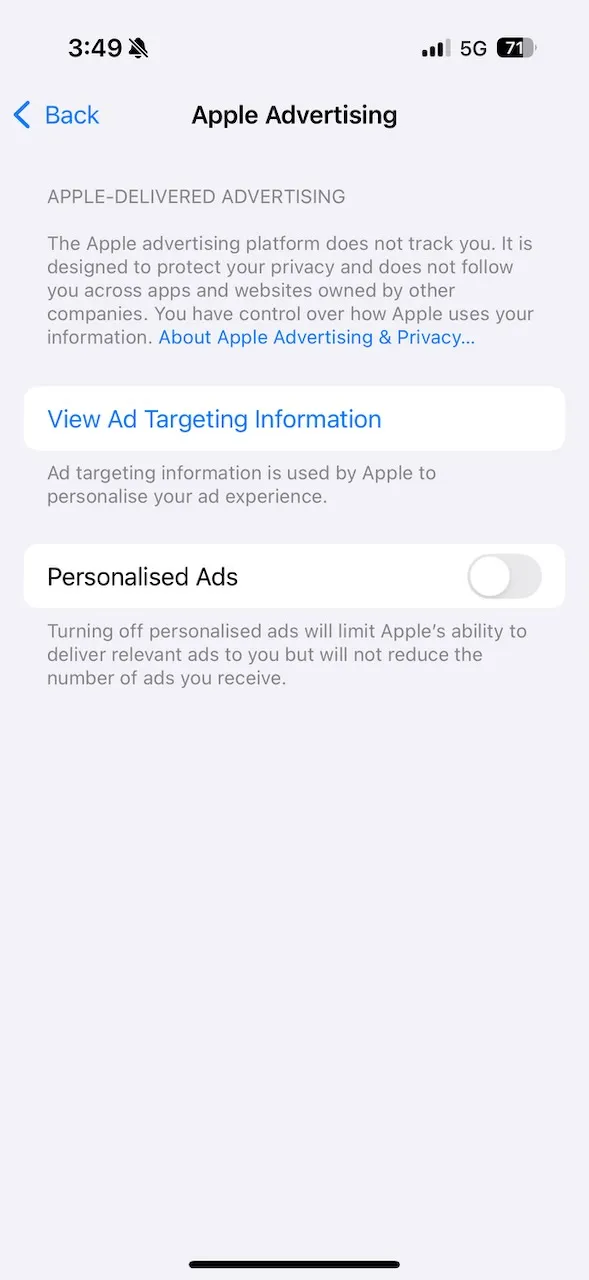
1) Step zero: Disable Apple’s targeted ads
This is the first thing you should do. It’s simple, takes less than a minute, and while it won’t remove ads, it will make them less creepy and personal.
Here’s how to do it:
- Open your iPhone settings
- Tap on Privacy and Security
- Scroll down to Apple Advertising
- Turn off Personalized Ads
Now at least your iPhone will stop tailoring ads based on your behavior. It’s a small win, but a good place to start.
2) AdGuard: The best choice if you want total ad blocking
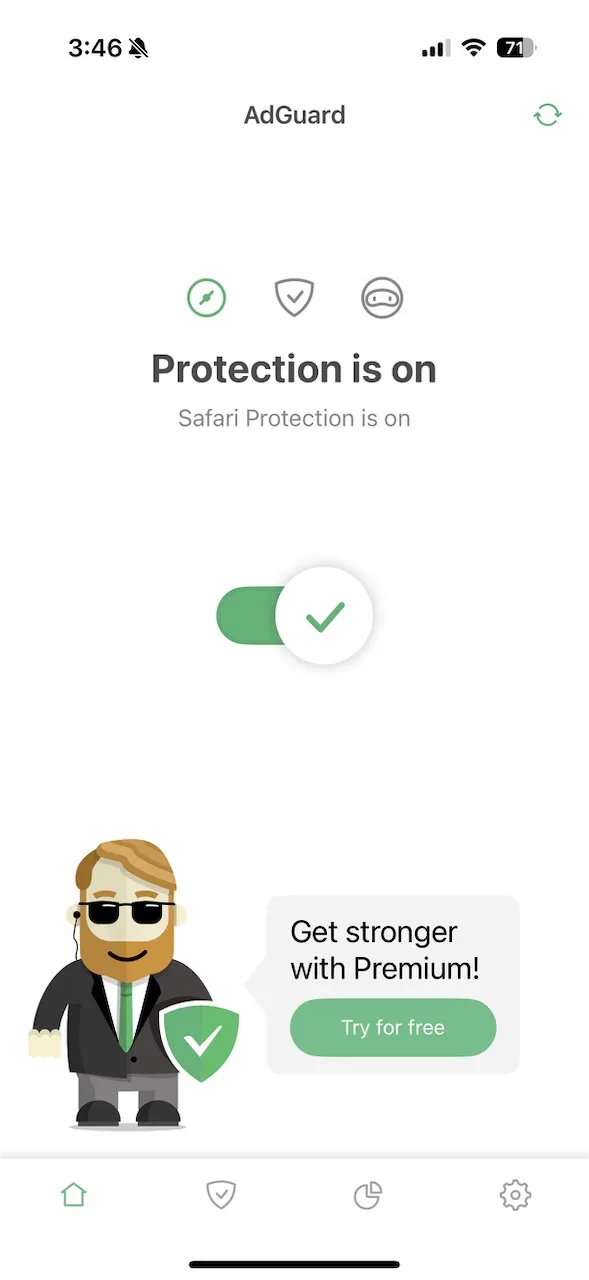
AdGuard is probably the most powerful ad blocker you can run on iOS right now. What makes it special is that it works not only in Safari but also inside apps and games. That’s a big deal, because most ad blockers on iPhone stop at the browser level.
How does it work?
AdGuard uses DNS filtering. In simple terms, every time an app or website tries to connect to a known ad server, AdGuard blocks the request at the network level. The ad never even loads. You don’t see it, your device doesn’t download it, and the whole thing just disappears.
You can either install the AdGuard app or go with the DNS method, which is my personal favorite.
The app version vs DNS profile
- The AdGuard app gives you more control and settings, but it runs locally like a VPN tunnel, which can slightly impact battery life.
- The DNS profile is super light, doesn’t require a running app in the background, and it works system-wide. It’s perfect for those who want quiet protection without any battery concerns.
Setting it up takes two minutes. Go to AdGuard’s site, follow their DNS setup guide, and you’re done. No need to jailbreak, no shady third-party tools, just clean browsing and app usage without distractions.
3) NordVPN with Threat Protection Pro: Block ads and stay protected
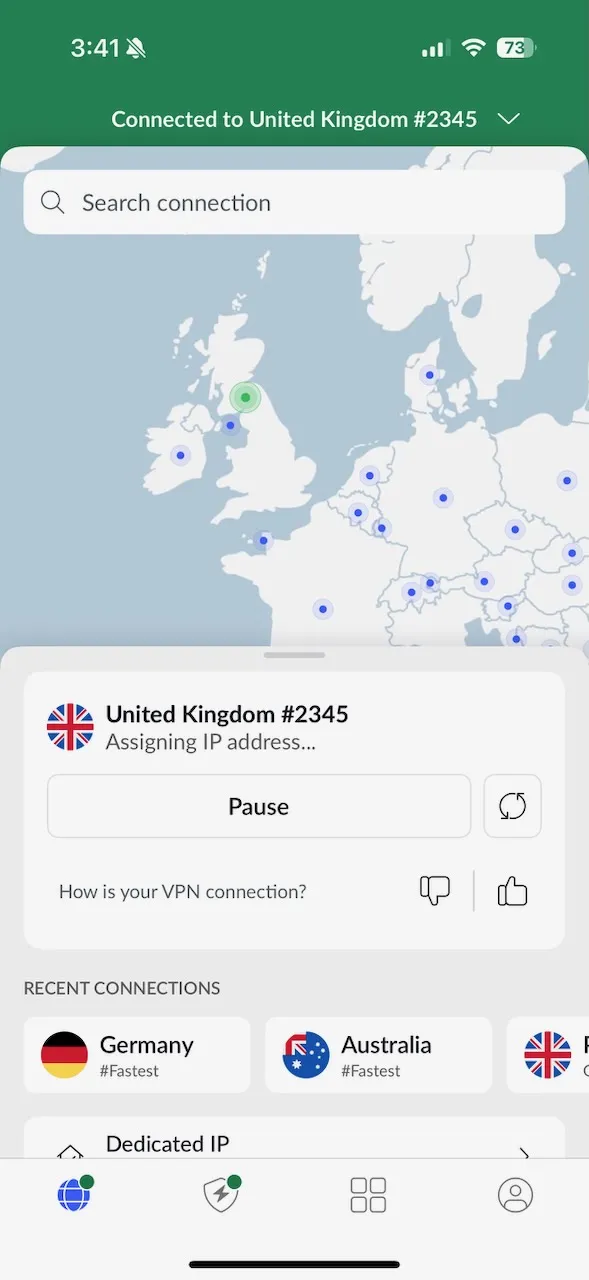
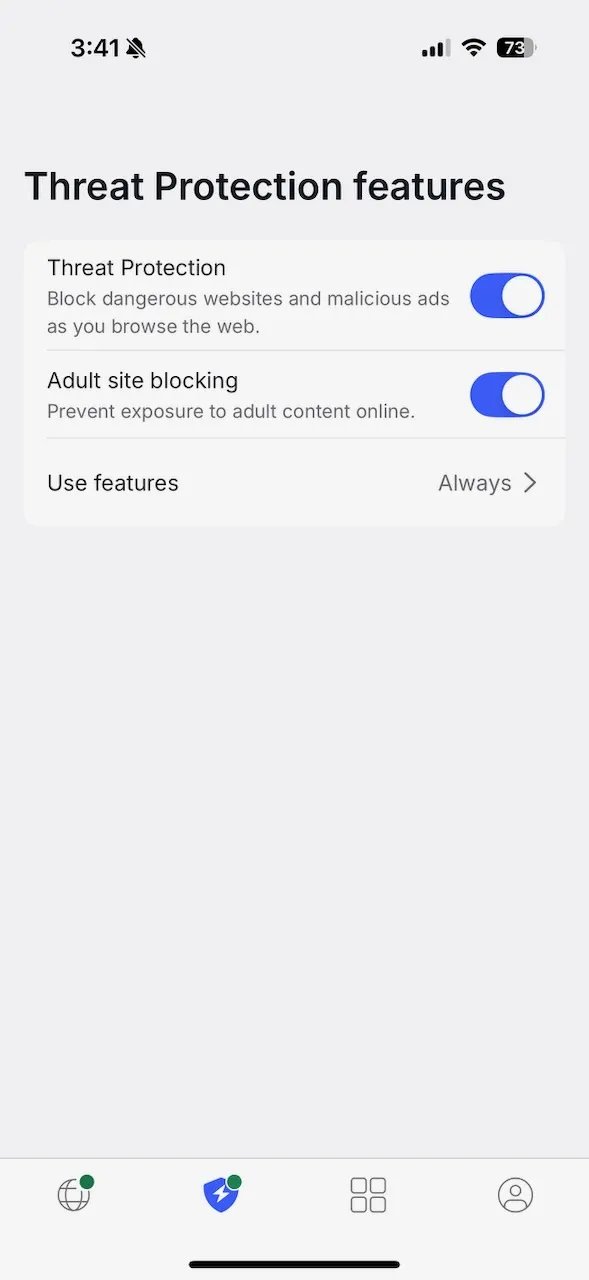
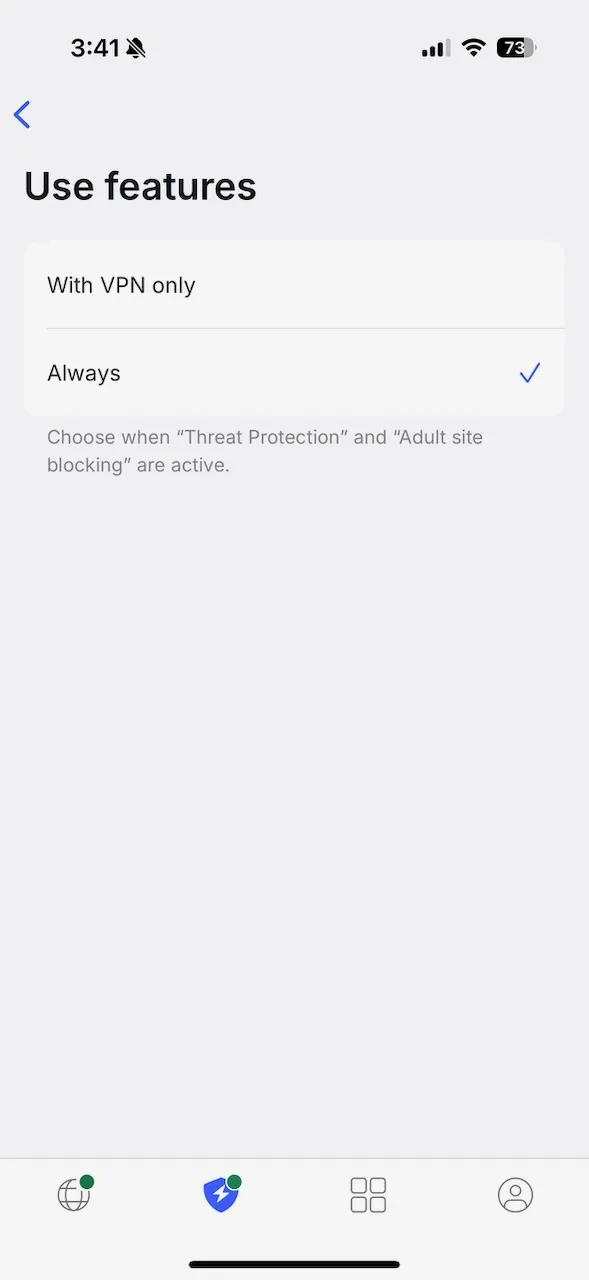
Now let’s say you care not just about blocking ads, but also about security, privacy, and being able to access content around the world. That’s where NordVPN comes in. And with their Threat Protection Pro feature, you get an ad blocker bundled right into your VPN.
What makes it cool?
- It blocks ads and trackers
- Stops malware and phishing domains before they load
- And the best part? It keeps running even when your VPN is turned off
That last one is a game changer. You don’t have to stay connected to a VPN server just to block ads. The filtering keeps going in the background, quietly protecting your phone.
This is great if you often switch between Wi-Fi and mobile data or want ad blocking plus encrypted internet in one neat setup.
What about battery drain?
Both AdGuard and NordVPN filter your traffic, so iOS may show them as high battery usage apps. Don’t panic.
The battery stats are misleading. Your phone just counts all the traffic passing through the filter, even if it’s not actually caused by those apps.
In real-world use, the DNS method with AdGuard is incredibly light. NordVPN uses a bit more when the VPN is active, but it’s nothing extreme.
Can either block YouTube ads?
Let’s be real. Neither AdGuard nor NordVPN can block video ads in the official YouTube app. That’s because those ads are baked directly into the video stream.
Your only options are to pay for YouTube Premium or watch YouTube through Safari, where AdGuard can at least block banners and sidebar ads.
So which one should you choose?
Here’s how I see it:
- If your main goal is to block all ads, including those inside apps and games, and you don’t care about VPN features, then AdGuard is the clear winner. Especially with the DNS method, it’s easy to set up, low impact, and brutally effective.
- If you want a VPN for privacy, security, and access to global content, and ad blocking is just a bonus, then NordVPN with Threat Protection Pro is a fantastic choice. I use it daily, and having it filter trackers and malware on top of hiding my IP is a big plus.
Final thoughts
Ads on iOS can be nasty. But you’re not stuck with them. With either AdGuard or NordVPN, you can take back control of your device and enjoy a cleaner, faster, and more private experience.
I’ve used both solutions for months. I recommend AdGuard for people who want surgical ad blocking. I recommend NordVPN for those who also want to secure their connection and unblock sites when traveling.
Either way, once you try life without ads, you won’t go back. Trust me.
Try NordVPN here → 77% off
Try AdGuard here → starts at just a few dollars per year or a one-time fee