








If you want to unblock foreign streaming catalogs on your Samsung or LG smart TV without buying a dedicated VPN router, NordVPN’s **SmartDNS** feature is the simplest and fastest solution available.
SmartDNS reroutes only your location-identifying DNS queries, leaving your actual internet traffic unencrypted so your television maintains 100% of its native connection speed for 4K and 8K HDR streaming. Here is the step-by-step guide to activating your IP address in NordVPN and plugging the custom DNS servers into your TV’s network settings.
1. The Operating System Hurdle: Why Tizen & webOS Block VPN Apps
To understand why you cannot find NordVPN in your Samsung or LG app store, look at the underlying platform architecture. While modern smartphones, computers, and streaming sticks run operating systems equipped with virtual network interfaces (like TUN/TAP drivers), Samsung’s Tizen OS and LG’s webOS are stripped-down Linux distributions locked down by proprietary digital rights management (DRM) frameworks.
Samsung and LG do not expose network socket interception APIs to third-party developers. Even if an engineer compiled a VPN binary for Tizen, the operating system would refuse to route system packets through it. Therefore, to change your television’s virtual streaming location, you must modify how the TV handles DNS lookups or encrypt the traffic at your network gateway router.
Secure Your High-Speed Encrypted Connection With NordVPN
Protect up to 10 devices simultaneously with audited RAM-only infrastructure, ultra-fast NordLynx speeds, and an unconditional 30-day money-back guarantee.
Get NordVPN With Exclusive 74% Discount →30-Day Unconditional Risk-Free Guarantee • 24/7 Live Customer Support
2. SmartDNS Proxy vs. Router VPN: Architectural Comparison
The diagram below contrasts how network packets egress your television when using lightweight SmartDNS versus a full encrypted router tunnel:
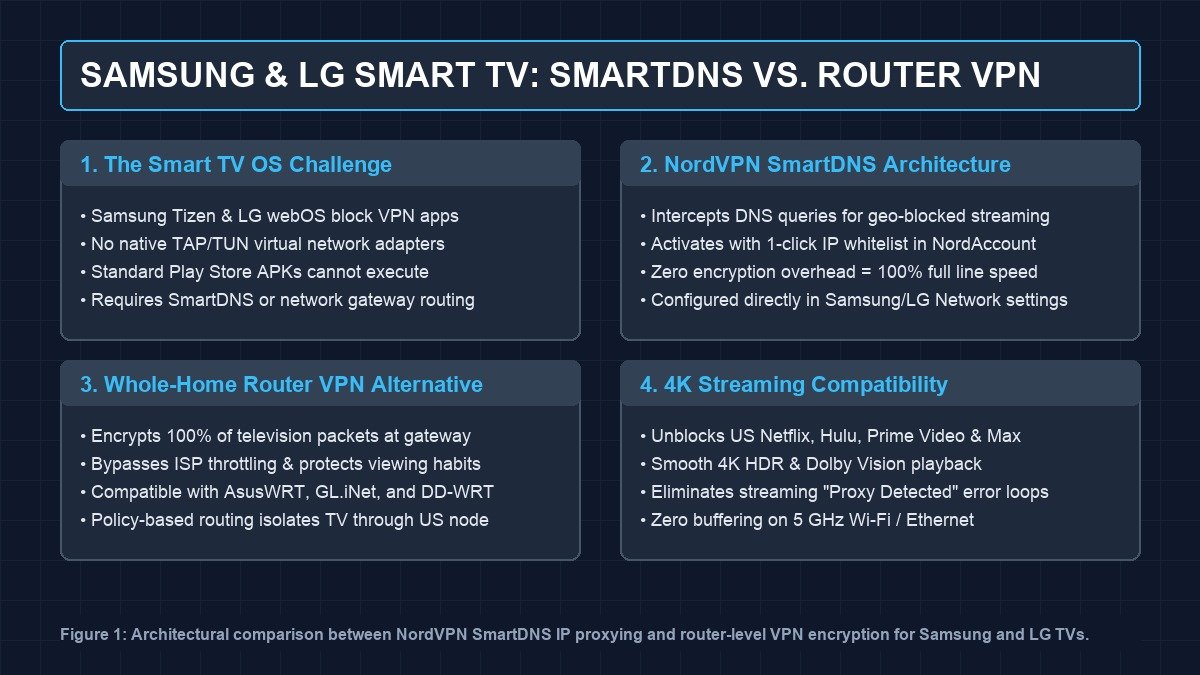
3. Method 1: The SmartDNS Setup (Zero Hardware, Pure Streaming Speed)
SmartDNS is an intelligent domain-proxy technology included free with every NordVPN subscription. When your television requests the IP address of a geo-blocked streaming service (such as Netflix or Hulu), NordVPN’s SmartDNS resolvers detect the query and transparently proxy only the geographic location verification packets through an overseas node. The actual heavy video stream travels directly between your ISP and the content delivery network (CDN).
Prerequisite: Whitelisting Your Public IP in NordAccount
Because SmartDNS does not use encrypted username/password handshakes, NordVPN authenticates your television by verifying your home internet connection’s public IPv4 address:
- Make sure your computer or smartphone is connected to the same home Wi-Fi network as your Samsung or LG television.
- Disconnect any active VPN connections on your computer.
- Log into your Nord Account web dashboard at
my.nordaccount.com. - Under the Services menu, select NordVPN.
- Scroll down to the SmartDNS panel and click Activate.
- NordVPN will detect your public IPv4 address and whitelist it across their SmartDNS network. Activation takes approximately 5 to 10 minutes. Note down the primary and secondary SmartDNS server IP addresses displayed on screen (typically:
103.86.99.103and103.86.96.103).
4. Configuring SmartDNS on Samsung Smart TVs (Tizen OS Walkthrough)
Once your home IP is whitelisted, configure the DNS settings on your Samsung TV:
- Grab your Samsung remote control and press the Home button, then select Settings (Gear Icon).
- Navigate to General > Network > Network Status.
- Wait for the TV to confirm internet connectivity, then select IP Settings at the bottom.
- Locate the DNS setting field. Change it from “Get automatically” to “Enter manually”.
- In the DNS Server input box, enter NordVPN’s SmartDNS address:
103.86.99.103(or the alternate103.86.96.103). - Click OK. The TV will test the connection. Once verified, power down your Samsung TV, unplug it from the wall socket for 30 seconds to flush internal memory, plug it back in, and launch Netflix or Hulu.
Secure Your High-Speed Encrypted Connection With NordVPN
Protect up to 10 devices simultaneously with audited RAM-only infrastructure, ultra-fast NordLynx speeds, and an unconditional 30-day money-back guarantee.
Get NordVPN With Exclusive 74% Discount →30-Day Unconditional Risk-Free Guarantee • 24/7 Live Customer Support
5. Configuring SmartDNS on LG Smart TVs (webOS Walkthrough)
On LG smart televisions running webOS, the procedure is equally straightforward:
- Press the Settings (Gear Icon) on your LG Magic Remote and select All Settings.
- Navigate to Network and choose your active connection: select Wi-Fi Connection (or Wired Connection / Ethernet).
- Scroll down to the bottom and click on Advanced Wi-Fi Settings.
- Click the Edit button.
- Uncheck the box marked “Set Automatically”.
- Scroll down to the DNS Server field, delete the default gateway address (e.g.,
192.168.1.1), and type:103.86.99.103. - Click Connect. The television will re-verify the network connection. Restart your LG television to initialize the new DNS mapping.
6. Method 2: Wi-Fi Router VPN Tunneling (Full Encryption & Privacy)
While SmartDNS unblocks streaming catalogs with zero speed degradation, it does not encrypt your TV traffic or hide your viewing habits from your Internet Service Provider. If you desire complete end-to-end encryption for your Samsung or LG television, the superior method is installing NordVPN directly on your home Wi-Fi router.
By configuring a VPN router (such as an Asus running AsusWRT-Merlin or a GL.iNet gateway), your router encrypts all outbound packets from your television before they reach your ISP. Your TV requires zero software configuration—it simply connects to your home Wi-Fi and enjoys blanket encrypted protection. Follow our step-by-step tutorial on how to install NordVPN on a Wi-Fi router.
7. Optimizing for 4K HDR & Dolby Vision: Eliminating Buffering
Because SmartDNS introduces zero cryptographic overhead, video data streams at 100% of your raw ISP line speed. However, to guarantee smooth 4K HDR playback without buffering:
- Prefer 5 GHz Wi-Fi or Direct Ethernet: Ensure your television is connected to a 5 GHz wireless band rather than saturated 2.4 GHz frequencies.
- Flush App Caches: If an app continues displaying your domestic region, navigate to your TV’s app settings, force stop the application, and clear cache.
- Ensure IPv6 Is Disabled: Some ISPs assign dual-stack IPv4 and IPv6 addresses. If your television queries an IPv6 DNS server, it can bypass SmartDNS. Disable IPv6 in your home router’s LAN settings to prevent leaks.
Secure Your High-Speed Encrypted Connection With NordVPN
Protect up to 10 devices simultaneously with audited RAM-only infrastructure, ultra-fast NordLynx speeds, and an unconditional 30-day money-back guarantee.
Get NordVPN With Exclusive 74% Discount →30-Day Unconditional Risk-Free Guarantee • 24/7 Live Customer Support
8. Troubleshooting: Dynamic IP Drops & App Cache Flushing
The most frequent issue users encounter with SmartDNS is that it suddenly stops unblocking streaming after several weeks. This happens because consumer ISPs dynamically rotate your residential public IP address.
When your ISP reboots your modem and assigns you a new public IP, NordVPN’s SmartDNS servers will no longer recognize your requests. To fix this, simply log into your Nord Account dashboard on your phone or laptop (connected to your home Wi-Fi), navigate to the SmartDNS panel, and click Activate / Update IP. Within 5 minutes, your new IP is whitelisted and streaming is restored.
9. Sysadmin Verdict: SmartDNS vs. Dedicated Streaming Stick
NordVPN SmartDNS is a remarkably elegant, lightweight solution for owners of Samsung and LG televisions who want to unlock foreign streaming libraries without spending money on additional hardware. It delivers uncompromised 4K video quality with zero buffering.
However, if you want full cryptographic privacy, automated server location switching via remote control, or access to non-US streaming regions, consider adding an inexpensive external streaming dongle running a native VPN client—such as an Apple TV 4K, Amazon Firestick 4K, or Chromecast with Google TV. You can evaluate either approach completely risk-free using the NordVPN 30-day money-back guarantee.
Secure Your High-Speed Encrypted Connection With NordVPN
Protect up to 10 devices simultaneously with audited RAM-only infrastructure, ultra-fast NordLynx speeds, and an unconditional 30-day money-back guarantee.
Get NordVPN With Exclusive 74% Discount →30-Day Unconditional Risk-Free Guarantee • 24/7 Live Customer Support
10. Frequently Asked Questions (FAQ)
Below are the 10 most common technical questions regarding NordVPN on Samsung and LG Smart TVs:
FAQ 1: Can I download the NordVPN app on my Samsung Smart TV?
No. Samsung smart televisions run on Tizen OS, which does not support virtual private network applications. To use NordVPN on a Samsung TV, you must configure SmartDNS in your TV’s network settings or install NordVPN on your home Wi-Fi router.
FAQ 2: Can I download the NordVPN app on my LG Smart TV?
No. LG smart televisions run webOS, which also lacks support for native VPN applications. You can easily unblock streaming catalogs on LG TVs by configuring NordVPN SmartDNS or connecting via an encrypted router tunnel.
FAQ 3: Does SmartDNS encrypt my internet traffic?
No. SmartDNS only proxies domain name resolution queries for geo-restricted streaming portals; it does not encrypt your data payload or hide your IP from other websites. If you require full encryption, connect your television through a VPN-flashed router.
FAQ 4: Is SmartDNS included for free with my NordVPN subscription?
Yes. SmartDNS is included at no additional charge across all NordVPN subscription tiers (Basic, Plus, Complete, and Ultimate). You simply activate it within your online Nord Account dashboard.
FAQ 5: Which streaming services can I unblock with SmartDNS on Samsung and LG TVs?
NordVPN SmartDNS is optimized primarily for US streaming libraries, including US Netflix, Hulu, HBO Max, Amazon Prime Video, and Peacock.
FAQ 6: Why did SmartDNS stop working on my television?
In 95% of cases, your home internet provider assigned your modem a new dynamic IP address. Log into your Nord Account dashboard from a device on your home network and click “Activate / Update IP” under SmartDNS to restore service.
FAQ 7: Will SmartDNS slow down my streaming speeds?
No. Because SmartDNS does not perform cryptographic packet encryption, your video streams travel directly over your native ISP bandwidth at maximum line speeds with zero buffering.
FAQ 8: Does SmartDNS count as one of my 10 device connections?
No. Because SmartDNS operates via IP whitelisting rather than an active VPN client session, it does not consume any of your 10 allowable simultaneous device connections.
FAQ 9: Can I use SmartDNS on older Samsung and LG TVs?
Yes. Any television that allows manual configuration of DNS server IP addresses within its network settings menu can use NordVPN SmartDNS, including models manufactured over a decade ago.
FAQ 10: Is it better to buy a Chromecast or Apple TV instead?
If you stream frequently from multiple international regions (like UK BBC iPlayer or Japanese Netflix) and want full encryption, buying an inexpensive streaming device (like a Chromecast with Google TV or Firestick 4K) that supports the native NordVPN app is often more convenient than SmartDNS.


