







If you’ve ever tried to block ads on your Android phone, you probably know it’s not as simple as installing a browser extension like you would on a laptop. Ads in apps are a whole different beast, and stopping them takes more than just changing your browser settings.
I’ve spent a fair amount of time testing all the common tools and tricks—both for personal use and at work because I hate being bombarded with ads in apps and games just as much as anyone else. Especially video ads that feel impossible to skip.
So, here’s a practical, no-nonsense guide to blocking ads across your whole Android device. No rooting required.
Let’s break it down.
Why Ad Blocking on Android Is Trickier Than on a PC
The biggest problem? Android doesn’t make it easy for apps to filter traffic system-wide. Google doesn’t allow ad blockers that work across all apps in the Play Store.
That’s why the most powerful ad blockers like AdGuard aren’t even there. You have to download them manually from the developer’s site (this is called sideloading).
So depending on how much you’re willing to tweak and install things outside the Play Store, you’ll need to pick the right method for your needs.
Here are the three main options, each with its pros and cons.
Option 1: Use Private DNS (Fast, Simple, Free)
If you’re running Android 9 or newer, you can block many ads just by changing your DNS settings. This is the easiest option—doesn’t need any apps or installations.
How It Works
Private DNS (also called DNS-over-TLS) encrypts your DNS requests and sends them to a server that blocks ad domains. That means if an app tries to pull data from an ad server, the DNS just says “not found,” and the ad never loads.
Setup Steps
- Open your phone’s Settings.
- Go to Network & internet (may vary by phone).
- Find Private DNS.
- Select Private DNS provider hostname.
- Paste in a hostname from one of these:
| DNS Provider | Hostname |
|---|---|
| AdGuard (Basic) | dns.adguard.com |
| Cloudflare | 1dot1dot1dot1.cloudflare-dns.com |
| Quad9 (Security) | dns.quad9.net |
| AdGuard Family (Safe) | dns-family.adguard.com |
- Tap Save.
You’re done! It works on both Wi-Fi and mobile data.
Limitations
This method only blocks entire domains. If an ad comes from the same domain as the app (like a video ad in YouTube or inside a mobile game), it won’t be blocked. So it’s a lightweight fix, but not a full solution.
Option 2: Use a Local VPN Ad Blocker (Best for Full Blocking)
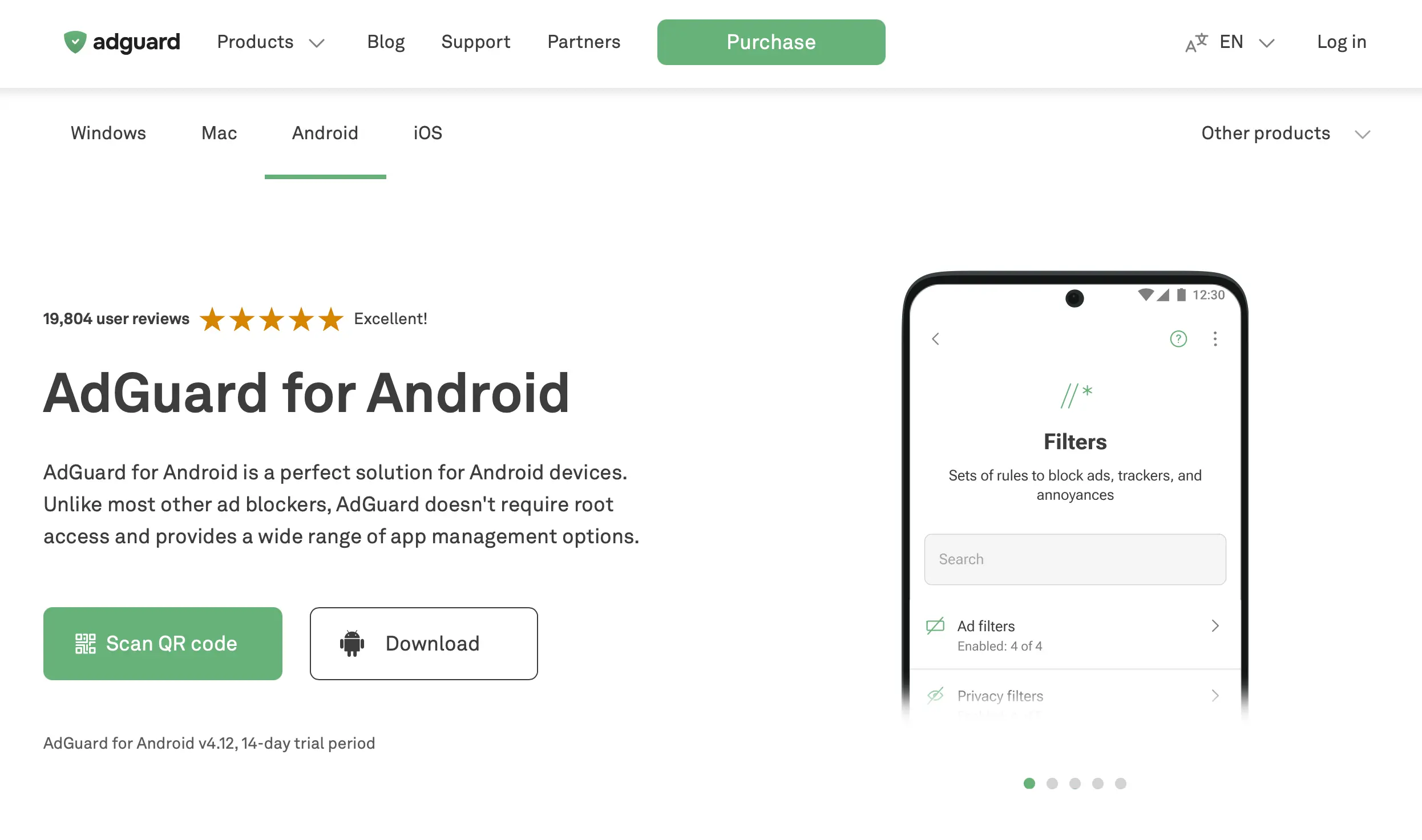
This is what I personally use at home: AdGuard with a Local VPN setup. It’s super powerful and works across the whole phone—including in-app ads and annoying video popups.
What Is a Local VPN?
Unlike a normal VPN that connects to servers in another country, a local VPN runs on your phone itself. It acts like a fake VPN, but instead of hiding your IP address, it filters all the traffic coming in and out of your phone.
This means it can block not just domains, but actual ad content. It sees what’s going on inside every request and removes ads before they even hit your screen.
Why It’s Not in the Play Store
Because it blocks system-wide ads, Google doesn’t allow it. So you’ll need to:
- Go to AdGuard’s official website
- Download the APK file
- Allow installation from unknown sources (just once)
Once it’s running, it works in the background without slowing things down.
What About Battery Usage?
You might see AdGuard pop up high in your battery usage stats. But that’s because it handles all traffic, and Android attributes all data usage to it—even when other apps are the real energy hogs.
In reality, it uses very little battery. And since it blocks heavy ads and trackers, it can actually reduce mobile data usage and extend battery life.
Option 3: Use a Premium VPN with Built-In Ad Blocking (e.g. NordVPN)
At work, we use Surfshark because it supports unlimited devices (great for teams), but I also have a personal subscription to NordVPN, which comes with a feature called Threat Protection.
It’s mostly designed for security—blocking malware, phishing, and trackers—but it also removes some ads.
How It Works
Threat Protection blocks known ad and tracker domains, and scans downloads for malware. It’s backed by independent audits, which is a big deal if you care about privacy and trust.
But there’s a catch: it only works vwhen the VPN is connected. On Android, that means you have to stay connected to a NordVPN server 24/7 if you want ad blocking to work.
Downsides
- It won’t block in-app video ads on platforms like YouTube or Facebook.
- It consumes more battery because it runs an encrypted VPN tunnel the whole time.
- No content-level filtering like AdGuard offers.
It’s great for security, but not enough if ad-blocking is your main goal.
What About Browsers?
If you just want to block ads while browsing the web, there are a couple of great browser-based options:
| Browser | Ad Blocking Features |
|---|---|
| Brave | Built-in ad and tracker blocking, fast and simple |
| Firefox | Lets you install extensions like uBlock Origin |
| Chrome | Minimal blocking, only very disruptive ads |
Final Comparison: Which Ad Blocker Should You Choose?
| Goal | Best Method | Why It’s the Best Fit |
|---|---|---|
| Simple setup, no battery hit | Private DNS | Fast, native, and free. Blocks basic ad domains. |
| Block all ads everywhere | AdGuard (Local VPN) | Highest level of filtering, works in apps and games. |
| Security + privacy first | NordVPN Threat Protection | Best for users already using a premium VPN for other reasons. |
Final Thoughts
If you’re just looking for something quick and easy, Private DNS is a good start. But if you’re serious about blocking every annoying banner, pop-up, and autoplay video ad, go with a local VPN blocker like AdGuard.
NordVPN Threat Protection is solid if you already have a subscription and want a bonus layer of protection, but don’t expect it to kill every ad, especially on mobile apps.
At the end of the day, it’s about finding the balance that works for you whether that’s maximum blocking, low battery use, or stronger privacy.